


Aspect ratio vs resolution is one of the most common points of confusion in video production and streaming. If you have ever set up a camera, exported a video, or adjusted a screen, you have run into two sets of numbers: ratios like 16:9 and 4:3, and resolutions like 1920×1080 or 4K. They are easy to confuse because both describe an image’s dimensions, but they answer completely different questions.
Aspect ratio describes the shape of the frame, while resolution describes the amount of detail inside it. This guide explains both in plain terms, lists the common values you’ll actually meet, shows how they interact, and helps you choose the right ones—with a note on why they matter once your video is being streamed.
The Core Difference in One Sentence
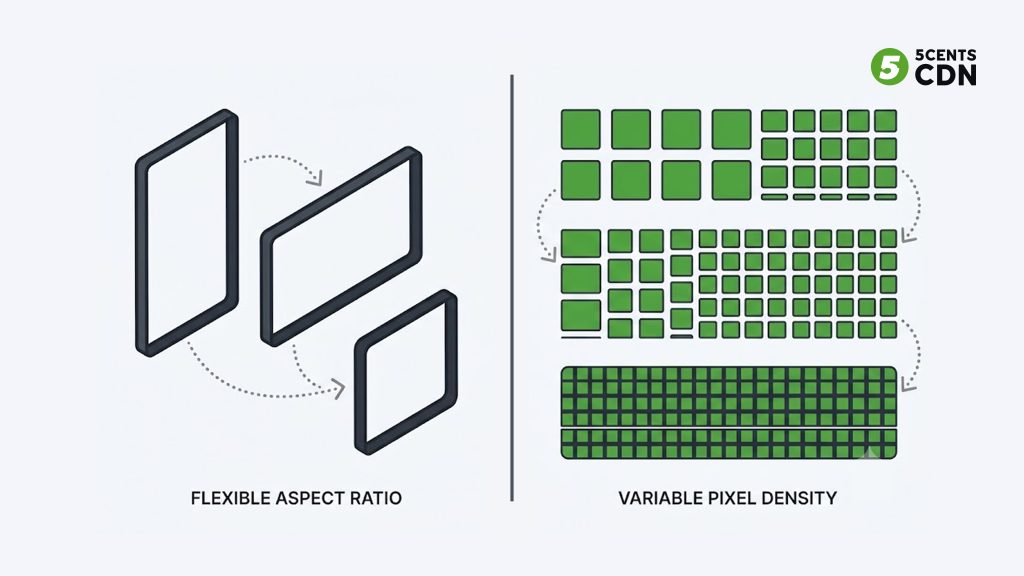
Aspect ratio is the proportional relationship between width and height — the shape of the rectangle. Resolution is the total number of pixels that fill that rectangle — how much fine detail it can hold. A helpful way to picture it: the aspect ratio is the outline of a picture frame, and the resolution is the number of tiny tiles used to fill the frame. You can keep the same frame shape and fill it with more or fewer tiles, and you can use the same number of tiles to fill frames of different shapes. They vary independently, which is exactly why they’re two separate settings.
Because they’re independent, one doesn’t determine the other. A tall, narrow phone video and a wide cinema shot can both be “4K.” A 16:9 clip can exist at 480p or at 2160p. Confusing the two leads to real problems — black bars, stretched faces, or files that are needlessly large — so it’s worth getting the distinction firmly in place.
What Is Aspect Ratio?
Aspect ratio is written as two numbers separated by a colon, width first: 4:3, 16:9, 21:9, and so on. The numbers express proportion, not size. A 16:9 frame is 16 units wide for every 9 units tall, whether that frame is a phone screen or a cinema wall. You can calculate it by dividing width by height:
Aspect ratio = frame width ÷ frame height (expressed as a ratio)
Change the ratio and you change the shape of the picture. That’s why footage shot in one ratio looks wrong on a screen built for another — the shapes don’t match, and something has to give. For more on the history and math, see the overview of aspect ratio on Wikipedia.
Common Aspect Ratios
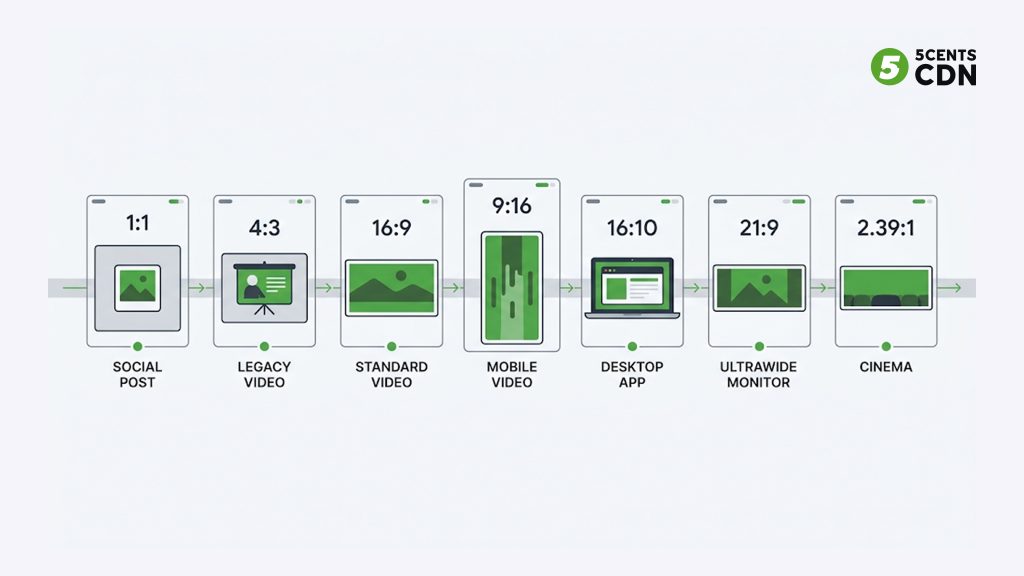
A handful of ratios cover almost everything you’ll produce or watch:
| Ratio | Shape | Where you’ll see it |
| 1:1 | Square | Social feed posts (Instagram, Facebook) where a square fits both portrait and landscape layouts |
| 4:3 | Nearly square | Older TVs, early computer monitors, some photography and presentations |
| 16:9 | Widescreen | The modern standard — HDTVs, monitors, YouTube, most streaming video |
| 9:16 | Vertical | Phone-first short video: TikTok, Reels, Stories, Shorts |
| 16:10 | Slightly taller widescreen | Many laptops and tablets; close to the golden ratio |
| 21:9 | Ultrawide | Ultrawide monitors and some cinematic content |
| 2.39:1 | Cinematic widescreen | Theatrical film (anamorphic / CinemaScope) |
The dominance of 16:9 is useful in practice because it can carry other ratios inside it with the least wasted space. But the rise of 9:16 for mobile-first video means creators increasingly shoot and deliver in more than one ratio for the same content.
Frame Aspect Ratio vs Pixel Aspect Ratio
One subtlety trips people up. Frame aspect ratio is the shape of the whole image, which is what we’ve been discussing. Pixel aspect ratio is the shape of the individual pixels that make up the image. Today’s screens use square pixels, so the two usually line up. But some older or broadcast formats used non-square pixels, which is why footage from certain legacy sources can look horizontally squeezed or stretched until software corrects for it. Unless you work with legacy video, you can assume square pixels — just know the term exists so a distorted-looking import doesn’t baffle you.
What Is Resolution?
Resolution is the number of pixels that make up the image, written as horizontal × vertical: 1920×1080. More pixels means more detail, sharper edges, and the ability to display cleanly on larger screens. Multiply the two numbers and you get the total pixel count — the reason a 4K frame looks so much crisper than an SD one is that it packs roughly eight million pixels where SD holds about three hundred thousand.
Resolution = horizontal pixels × vertical pixels
Resolution names like “1080p” and “4K” are shorthand for these pixel dimensions. The “p” in 1080p stands for progressive scan (all lines drawn each frame), as opposed to the older interlaced “i.” You can read more in Wikipedia’s summary of display resolution.
Common Video Resolutions
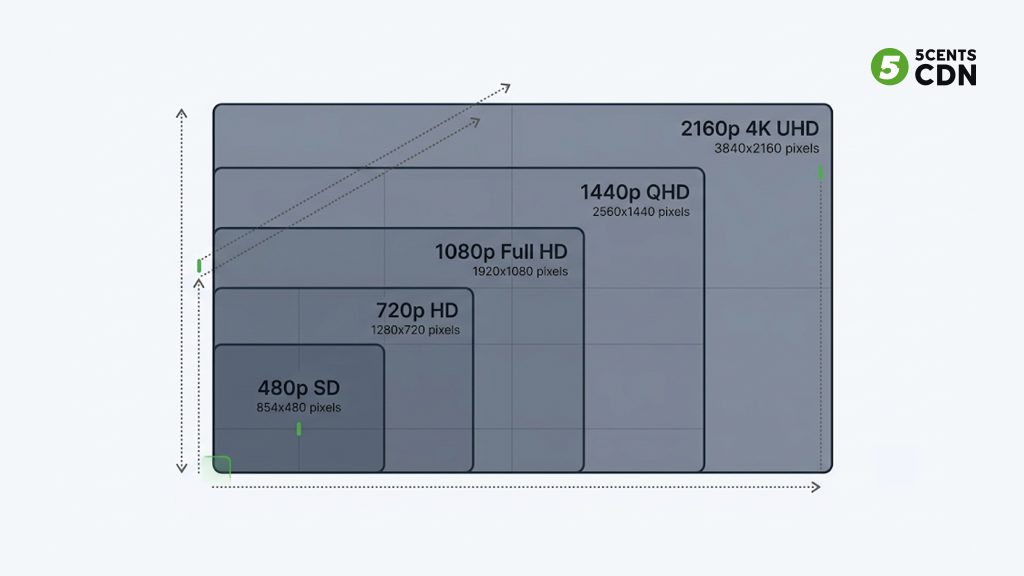
These are the resolutions you’ll meet most often in video, all shown at the standard 16:9 shape:
| Name | Pixels (16:9) | Total pixels | Typical use |
| SD (480p) | 640×480 / 854×480 | ~0.3 MP | Legacy, low-bandwidth fallback |
| HD (720p) | 1280×720 | ~0.9 MP | Minimum HD; broadcast, lighter streams |
| Full HD (1080p) | 1920×1080 | ~2.1 MP | Current mainstream standard for streaming |
| 2K / QHD (1440p) | 2560×1440 | ~3.7 MP | High-end monitors, gaming |
| 4K / UHD (2160p) | 3840×2160 | ~8.3 MP | Premium TVs, high-end streaming and VOD |
| 8K / UHD-2 (4320p) | 7680×4320 | ~33 MP | Emerging; large displays, production masters |
A common point of confusion: “2K” and “4K” are named loosely. “4K” refers to roughly four thousand horizontal pixels, while “1080p” is named for its vertical pixel count — the naming conventions come from different eras and industries, which is why they don’t line up neatly.
How Aspect Ratio and Resolution Work Together
Because resolution is a width and a height, every resolution implies an aspect ratio. Divide 1920 by 1080 and you get 16:9; 640 by 480 gives 4:3. So the two are linked, but not locked: you can have a 16:9 image at many different resolutions, and you can have the same total pixel count arranged into different shapes. The cleanest results happen when the resolution’s built-in ratio matches the shape you intend and the screen you’re displaying on — its native resolution. Feed a display its native resolution at the matching aspect ratio and you get a pixel-perfect, undistorted picture.
What Happens When They Don’t Match
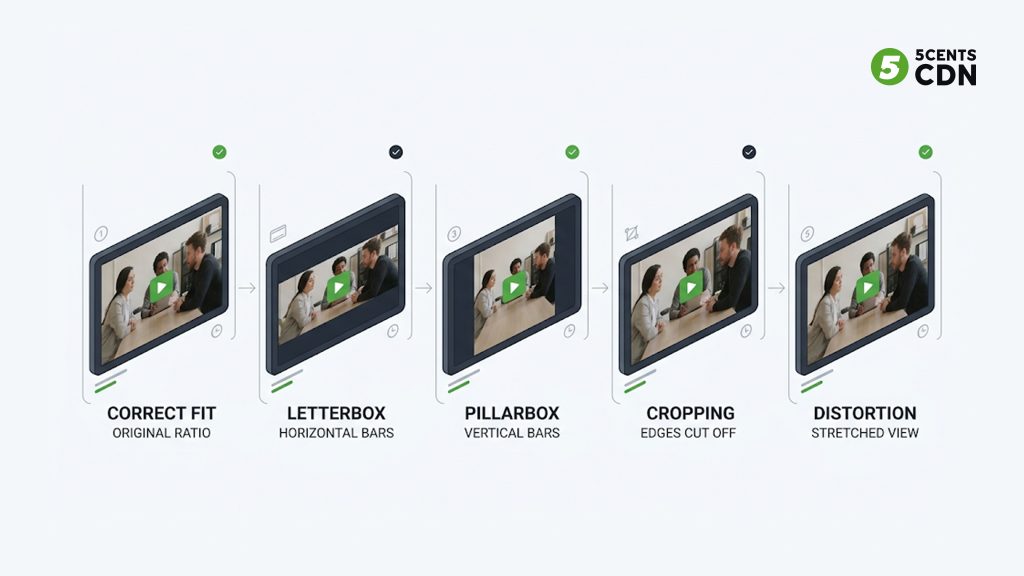
When the shape of your content doesn’t match the shape of the screen, something has to give. There are four common outcomes:
- Letterboxing — black bars on the top and bottom, seen when wide content (like a 2.39:1 film) plays on a less-wide 16:9 screen.
- Pillarboxing — black bars on the left and right, seen when narrower content (like 4:3) plays on a wide 16:9 screen.
- Cropping — the image is zoomed to fill the screen and the edges are cut off, preserving shape at the cost of losing part of the picture.
- Stretching — the image is distorted to fill the frame, making people and objects look unnaturally wide or tall. This is the outcome to avoid.
The bars in letterboxing and pillarboxing aren’t errors — they’re the honest way to show content without distorting it. Stretching is what happens when a player or TV is set to “fill” mode and forces a mismatch. Matching your content’s aspect ratio to the target screen wherever possible avoids all four compromises.
Upscaling and Downscaling
Resolution can be changed after the fact. Downscaling reduces pixel count — going from 4K to 1080p — and generally looks fine because you’re discarding detail you can afford to lose. Upscaling increases pixel count — 1080p stretched to 4K — but it can’t invent detail that was never captured, so the result is softer than native 4K even though the pixel count matches. This is why the source resolution matters: you can always scale down cleanly, but scaling up has limits.
Why This Matters for Streaming
Once video leaves your editor and gets delivered over the internet, aspect ratio and resolution stop being just visual choices and start driving cost and performance. Higher resolution means more pixels, and more pixels need more data to transmit — so resolution is directly tied to bitrate. A 4K stream can require several times the bandwidth of a 1080p one for the same content. That’s why streaming platforms don’t ship a single resolution; they prepare several.
During video encoding, a single source is transcoded into multiple resolutions — each a rung on an encoding ladder — so a player can pick the resolution that fits the viewer’s screen and connection. All those renditions normally keep the same aspect ratio as the source, so the shape stays constant while the detail scales up or down. If you want the full picture of how those renditions are chosen, our guide to encoding ladders walks through the design decisions, and the video transcoding post covers the conversion step itself.
Aspect ratio matters here too: mismatched ratios across your workflow produce the black bars and cropping described above, baked permanently into the delivered file. Deciding your target aspect ratio and resolution before you encode — and keeping them consistent through delivery — is the simplest way to avoid surprises for viewers. If you’re setting up a streaming workflow and want your encoding and global delivery handled together, the 5centsCDN team can help you get resolution, aspect ratio, and bitrate aligned end to end.
How to Choose the Right Settings
A few practical rules cover most situations:
- Match the platform. Use 16:9 for standard video and YouTube, 9:16 for mobile-first short video, 1:1 for square social posts. Let the destination decide the shape.
- Shoot and master at the highest sensible resolution. You can always downscale cleanly for delivery, but you can’t recover detail you never captured.
- Keep aspect ratio consistent end to end. Decide the shape once, at the start, and carry it through editing, encoding, and delivery to avoid bars and cropping.
- Let resolution scale, not the shape. When delivering to many devices, vary resolution across renditions but hold the aspect ratio constant.
- Set displays to native resolution. For the sharpest picture on any given screen, feed it the resolution it was built for.
Frequently Asked Questions
What is the difference between aspect ratio and resolution?
Aspect ratio is the proportional relationship between an image’s width and height — its shape, written like 16:9. Resolution is the number of pixels that fill the image — its detail, written like 1920×1080. One describes shape, the other describes detail, and they can be changed independently.
Does higher resolution change the aspect ratio?
No. Resolution and aspect ratio are independent. 1280×720 and 1920×1080 are both 16:9 despite having very different pixel counts. Increasing resolution adds detail without changing the frame’s shape, as long as the width-to-height proportion stays the same.
Is 4K an aspect ratio or a resolution?
4K is a resolution — roughly 3840×2160 pixels for consumer UHD. It is almost always paired with a 16:9 aspect ratio, but the term itself refers to the pixel count, not the shape.
Why does my video have black bars?
Black bars appear when the video’s aspect ratio doesn’t match the screen’s. Bars on the top and bottom (letterboxing) mean the content is wider than the screen; bars on the sides (pillarboxing) mean it’s narrower. The bars preserve the original shape instead of stretching the image.
What resolution and aspect ratio should I use for streaming?
For most streaming, 1920×1080 (1080p) at 16:9 is the mainstream standard and a safe default. Platforms then transcode that source into several lower resolutions so viewers on slower connections still get smooth playback. For mobile-first short video, use 9:16 instead.