


A VAST error is what a video player reports when it was supposed to play an ad and could not. The break arrives, the content resumes (or a spinner appears, or the screen goes quiet), and an ad slot that should have earned money earns nothing. All you get back is a number: 303, 402, 405, 901. VAST error codes help identify what went wrong and where the ad delivery process failed.
That number is more useful than it looks. VAST error codes are a shared vocabulary defined in the IAB Tech Lab’s VAST specification, and each code tells you which stage of the ad pipeline broke: the response could not be parsed, the redirect chain ran dry, the video file would not load, or the stitching server did not receive something it needed. Read correctly, a code can turn a multi-day investigation into a ten-minute one.
This guide covers every code in the VAST 4.3 table, but it is organized by where things fail rather than by number, because that is how debugging actually works. It also covers something most error-code guides skip: what changes when ads are stitched into the stream on the server instead of being played by the viewer’s own player. If the format itself is new to you, start with our explainer on what VAST is, then come back here.
What a VAST Error Code Actually Is
When an ad server builds a VAST response, it can include one or more Error elements. Each holds a URL, and that URL usually contains a placeholder macro, [ERRORCODE]. If anything goes wrong, the player (or the server acting on its behalf) calls that URL with the placeholder swapped for the real number. The ad server logs the hit, and that log is the error report you later see in a dashboard.
Think of it as a pre-addressed return envelope. The ad server tucks the envelope into every response; when delivery fails, the player drops it in the mail with the reason written on the back. It also means a tag with no Error element has no envelope. Failures still happen, but nobody tells the ad server, and you are left debugging a silence.
<VAST version="4.2">

  <Ad id="example">

    <InLine>

      <AdSystem>Example Ad Server</AdSystem>

      <Error><![CDATA[https://example.com/e?code=[ERRORCODE]]]></Error>

      ...

    </InLine>

  </Ad>

</VAST>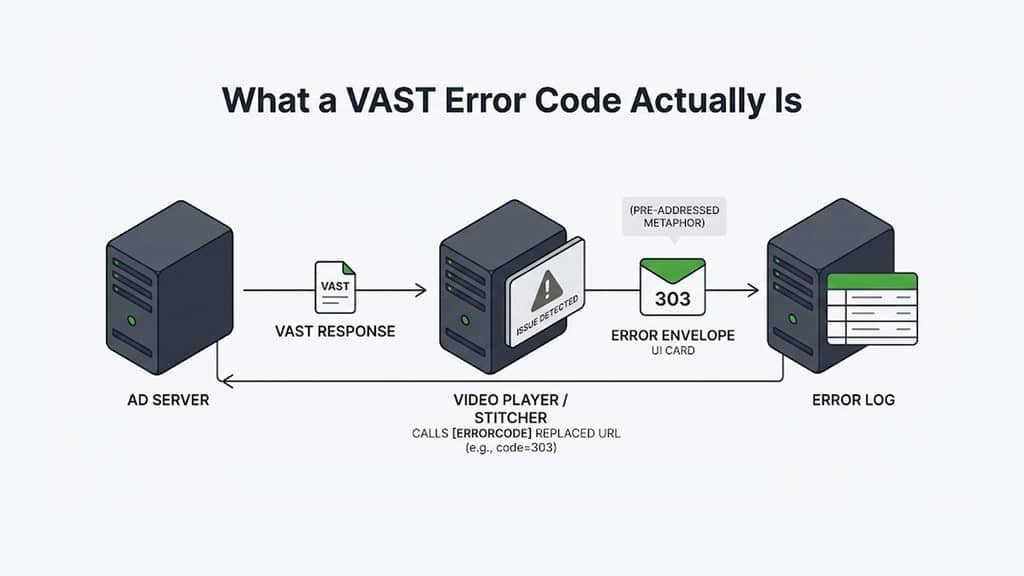
Three distinctions are worth making before looking at a single code.
A VAST code is not an HTTP status. VAST error 301 means a wrapper’s redirect timed out. HTTP 301 means “Moved Permanently,” as defined in RFC 9110. Same digits, unrelated meanings. A VAST code tells you which stage failed; the HTTP status of the request at that stage is separate evidence you will often need alongside it.
Not every number is an IAB code. The standard VAST codes sit below 1000. Player SDKs add their own: Google’s IMA SDK, for example, reserves ranges from 1000 to 1299 for its own generic, low-level and playback errors. If you see 1005 or 1009 in a report, you are looking at an SDK or ad-server code, not the IAB table.
Fatal and non-fatal are guides, not guarantees. In the common convention, a fatal error stopped the ad request, so the player moves on to another ad or resumes the content, while a potentially non-fatal error may still let the ad play. Behavior ultimately depends on the player implementation, so use severity to prioritize, not to conclude.
Who Sees the Error? Client-Side Players vs Server-Side Insertion
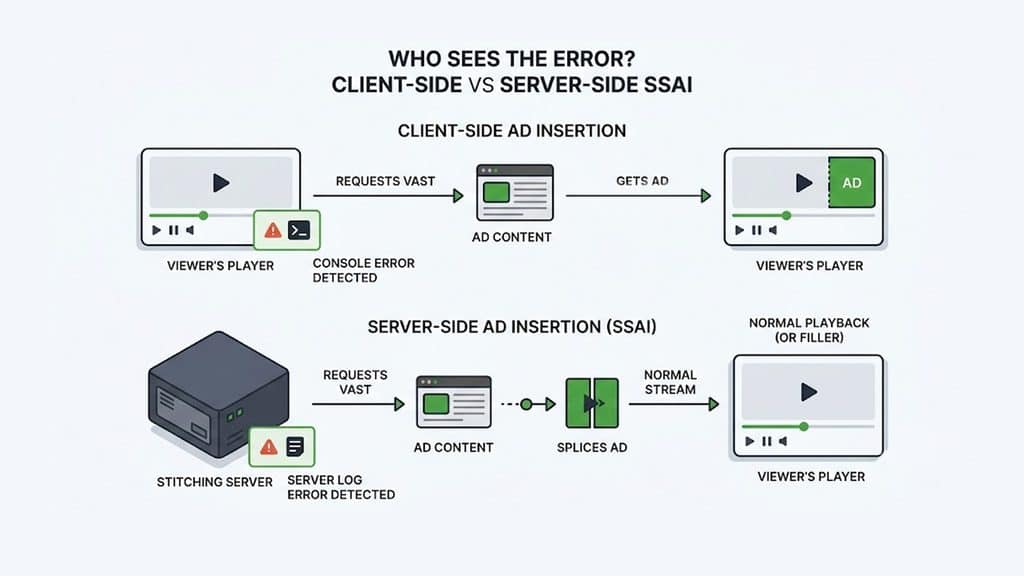
Most error-code guides quietly assume a client-side player: the viewer’s app requests the VAST tag, parses it, downloads the creative and plays it. In that world every error is the player’s, and you can often watch it happen in a browser’s network tab and console.
With server-side ad insertion, the job moves. When a break begins (in live streams, usually announced by an SCTE-35 cue), a stitching server requests the VAST response, follows any wrappers, fetches the creative and splices it into the stream before it ever reaches the viewer. The viewer’s player sees ordinary video segments and never touches VAST at all. A useful comparison: a client-side player opens its own mail, while SSAI is an assistant who opens the mail for you and hands over only the finished summary. If a letter is malformed, the assistant knows. You just see a gap in the summary.
That shift changes how errors look in practice:
- The error lives on the server. You will not find it in the viewer’s console. It shows up in the insertion platform’s logs and reports, or in your ad server’s reporting through Error URLs that the server fires.
- Failure looks like absence. The viewer sees content continue, a shorter break or filler, not an error dialog. And a lost ad does not always produce a code: a break can come back partly filled because of duration limits on the pod even though every VAST response was perfectly valid. That is why break-level reporting such as our video ad analytics, which shows fill status and VAST outcome for each break alongside logged errors, matters as much as the codes themselves.
- The time budget is tighter. A client-side player can show a spinner for a few seconds; a live break arrives on a schedule. Every wrapper hop and every slow creative fetch eats into time a stitching server does not have, so a timeout that looks minor in a browser test can mean a lost break in production.
- Some codes exist because of stitching. The mezzanine codes (406, 407 and 411) concern the source files that server-side insertion needs. A client-side player would never raise them.
The Seven Places a VAST Ad Can Fail
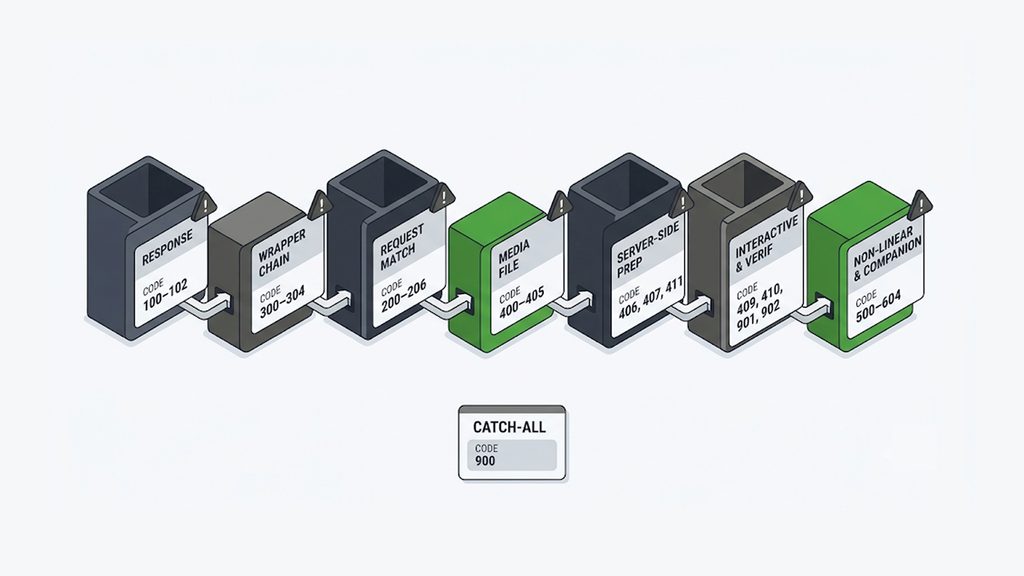
Before the individual codes, it helps to have a map. A VAST ad has to survive a sequence of stages, and the hundreds digit of an error code roughly tells you which one failed.
| Stage | Codes | What went wrong |
|---|---|---|
| 1. The response | 100, 101, 102 | The document could not be read, was not valid VAST, or used an unsupported version |
| 2. The wrapper chain | 300–304 | A redirect hop failed, timed out, looped or ended with no ad |
| 3. The request match | 200–206 | The ad that came back does not match what the player or request allowed |
| 4. The media file | 400–405 | The creative could not be found, loaded or played |
| 5. Server-side preparation | 406, 407, 411 | The stitching server lacked a usable source file |
| 6. Interactive and verification code | 409, 410, 901, 902 | Extra code attached to the ad failed to run |
| 7. Non-linear and companion ads | 500–604 | Overlay or banner elements could not be shown |
Code 900, the undefined error, sits outside the map: it means the failure did not fit any other bucket. The sections below follow the order a request travels, starting with the response itself.
Parsing and Version Errors: 100, 101 and 102
Error 100: XML parsing error. The response is not well-formed XML, which the W3C’s XML specification treats as a fatal error for any XML processor. In practice the usual suspects are an unescaped ampersand inside a URL, a broken CDATA section, stray characters before the XML declaration and, more often than people expect, a response that was never XML at all, such as an HTML error page or a display-ad tag served where a VAST tag should be. Google also notes that 100 can be reported when a redirect VAST URL fails to resolve, and in browser players a cross-origin request blocked by missing CORS headers can surface the same way. The fix starts with fetching the raw response yourself: look at the first few hundred bytes, check the content type, and confirm it begins with an XML declaration or a VAST element.
Error 101: schema validation error. The XML parses, but it is not valid VAST. Required pieces are missing or malformed: an InLine element without an AdSystem, a Duration that is not in HH:MM:SS format, a MediaFile whose delivery attribute is something other than progressive or streaming. A parser can read the document and still reject it because it breaks the template’s rules. Validation is the fix, not guesswork: run the tag through the VAST Validator, which checks structure, media files, durations, tracking and wrappers against the IAB spec.
Error 102: version not supported. The response declares a VAST version the player or stitching server cannot handle, typically because a demand partner returned a version the request did not allow. If the version attribute is missing altogether, it is usually treated as a schema problem instead. The fix is agreement: confirm which versions your player or insertion platform accepts, and make sure demand partners respond within that range.
Wrapper Chain Errors: 300 to 304
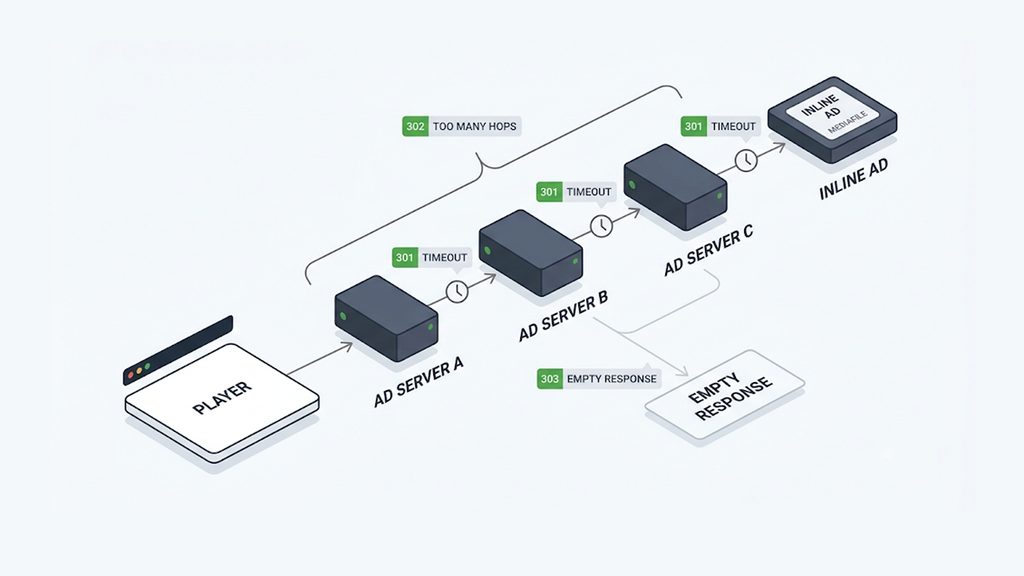
A wrapper is a forwarding address. Instead of returning an ad, the first server returns another address to try, and the player follows the chain until it reaches a real ad (an InLine response) or gives up. That arrangement lets several ad-tech parties measure one impression, but every hop is a new HTTP request with its own delay and its own chance to fail.
Error 300: general wrapper error. A catch-all for wrapper failures that do not fit a more specific code. Google’s documentation describes it as not actionable on its own, so look for a more specific code in the same logs, then inspect the wrapper XML itself. A wrapper with no usable next-hop address (the VASTAdTagURI element) is worth checking first.
Error 301: wrapper timeout. The next hop did not answer in time. Common causes include an invalid or unreachable address, security restrictions on the request (an HTTP address requested from an HTTPS page is a classic), a high-latency connection, or simply a slow demand partner. Timeouts are player-defined; Google’s IMA SDK, for instance, defaults to five seconds for the initial VAST request and for each wrapper after it. Measure each hop’s response time before touching any limits: raising a timeout hides a slow partner, it does not fix one.
Error 302: wrapper limit reached. The chain was longer than the player allows without producing an ad. The causes are too many legitimate hops, a loop in which networks pass the request back and forth (daisy chaining), or a pile of empty fallback responses. Cut the chain down to as few hops as the commercial setup genuinely needs, and treat any loop as a bug in a partner’s configuration. Raising the limit is the last resort, because every extra hop adds delay.
Error 303: no ads after wrappers. The chain ended in an empty response. This is the most common code in many reports and the least likely to be a bug: it is often the market saying “no ad for this request,” like arriving at a shop to find the shelf empty because the ad decision server on the demand side had nothing eligible. Google’s own guidance frames it as a rate question: if a demand source is expected to fill about 60 percent of requests, an error rate near 40 percent for this code can be perfectly normal. Compare the rate with the partner’s expected fill before escalating. Real bugs hide in sudden changes: a spike after a campaign ended, targeting that no longer matches, a floor price set too high, or an ad request that went out with unreplaced macros (the problem we unpack in who fills in your ad macros). Empty responses are also why layered demand exists: a primary source backed by fallbacks, as covered in our guide to ad demand sources for streaming.
Error 304: ad failed to display in time. The chain resolved to an InLine ad, but the ad did not start within the time limit the player defines. The ad was found; it was just too slow. Look at what happens between “ad found” and “first frame”: heavy creatives, slow media hosts and verification scripts that block startup are common sources of delay.
Trafficking and Mismatch Errors: 200 to 206
These codes mean the ad that arrived does not match what was asked for. The player or the request set rules (ad type, duration, size, whether the ad may be skippable) and the response broke them.
200 is a trafficking error: the player received an ad type it did not expect or cannot play, for example a skippable ad where only plain linear ads are supported. 201 is a linearity mismatch: a non-linear overlay came back for a linear request. 202 is a duration mismatch: the declared duration does not match the media file’s actual length, or breaks a maximum set in the request. 203 is a size mismatch: media files unsuited to the device, classically high-bitrate creatives sent to mobile. Google classes these four as potentially non-fatal, which means the ad may still play, so they tend to hide in reports as quiet quality problems rather than visible failures.
204 and 205 are about ad categories. 204 means a category was required but not provided; 205 means the category of the returned ad violates the block list in a wrapper (its BlockedAdCategories). Both come from category-based brand-safety rules, and the fix is on the demand side: send the category, and respect the blocks.
206 means the ad break was shortened and the ad was not served. In live streams, break length is typically signaled by the SCTE-35 cue, so a cue that declares less time than your ad pod needs is a reasonable first thing to check.
The fix for the whole group is alignment: make sure what you request (version, durations, ad types, skip rules) matches what demand is allowed to return, and give partners those constraints in writing.
Media File Errors: 400 to 405
If the VAST XML is fine and the chain resolved, the next place to fail is the creative itself. The video file has to be found, downloaded fast enough and played by this specific player.
Error 400: general linear error. The player could not display the linear ad. Google lists an invalid video file for the declared format and browsers restricting autoplay with sound among the causes. On web players the autoplay one is worth testing first: start playback from a user gesture, or muted, and see whether the error disappears.
Error 401: file not found. The player followed the MediaFile address and found nothing: a removed creative, a mistyped path, an expired or access-restricted URL. Request the file directly and read the HTTP status.
Error 402: media timeout. The file did not load in time. Google’s IMA SDK defaults to an eight-second limit for loading the media. Common causes are low bandwidth, creatives hosted on slow servers, a limit set too low, or a heavy file chosen when a lighter one would do. Offering several MediaFile versions at different bitrates lets the player pick one that fits the viewer’s connection, and serving creatives from a fast CDN treats the ad as what it is: video that needs the same delivery quality as your content.
Error 403: no supported media file. Every MediaFile declared a type the player cannot use, such as WebM on iOS, or the response offered a VPAID creative to a player that cannot run one. The safe baseline is a plain MP4 with H.264 video and AAC audio alongside anything fancier.
Error 405: problem displaying a media file. The harder cousin of 403: the player found a file whose type it supports but could not render it. The IAB’s description lists unsupported codecs, an actual MIME type that differs from the declared one, and an unsupported delivery method, and Google adds CORS misconfiguration on the creative’s CDN. Debug it by inspecting the real file (a tool such as ffprobe shows the actual container and codecs), comparing the result with the type, codec and delivery attributes declared in the MediaFile element, and, if the player loads the file from a browser, checking that the host returns correct CORS headers.
Server-Side Stitching Errors: 406, 407 and 411
These three codes exist because of how server-side insertion works. A creative usually arrives as a ready-to-play file, the radio edit. A stitching server often wants the master: a high-quality source file called a mezzanine, from which it can produce versions that suit the stream’s renditions, so the ad can match the content around it instead of dropping visibly in quality at the splice. Google’s documentation describes server-side implementations as the ones that often require mezzanine files, either for ad stitching or to generate video of appropriate quality.
Error 406: mezzanine required but not provided. The platform needs a source file and the response did not include one, so the ad is not served. This is a demand-side fix: the buyer must include a Mezzanine element when the publisher requires it. It is also worth confirming whether your insertion platform actually requires one for your demand source, because requirements differ between platforms.
Error 407: mezzanine downloading for the first time. This is the one code in the list that is usually good news in disguise. The first time the server sees a creative, it has to download and transcode it, which the specification says can take up to several hours; until it is ready, the ad is not served. Google’s guidance for this code is that it is expected and needs no action. Expect 407 to spike when new campaigns or creatives launch and, where your platform allows it, get creatives into the system before the flight begins rather than at the first live break.
Error 411: mezzanine does not meet the specification. The file was provided but fails the requirements, for example the wrong resolution, codec or format for what the platform needs. Compare it against the publisher’s published mezzanine requirements and send a corrected file.
The mezzanine mechanism arrived with VAST 4, and a client-side player never raises these codes, which is one more reason an ad that plays fine in a browser test can still fail on the server side.
Interactive, Verification and VPAID Errors: 409, 410, 901 and 902
These codes concern extra code that rides along with an ad: interactive experiences and measurement scripts.
409 means the interactive unit declared in the InteractiveCreativeFile element did not run, and 902 is the general error code for that same mechanism. Both relate to interactive ads built on SIMID, the IAB’s standard for interactivity. 410 means the code referenced in the AdVerification node did not run, which usually points to a verification vendor’s script that was not implemented the way the vendor specifies.
Error 901: general VPAID error. VPAID was the older interactive-ad standard, and the IAB has since replaced its roles with SIMID for interactivity and OMID for measurement. Google lists several causes: an ad platform’s VPAID wrapper timing out or not buying, creatives that needed an insecure mode, and a mismatch between the ad tag type and the SDK. The broader problem is that VPAID needs a player able to run code supplied by the creative. A server-side stitching platform cannot, and many connected-TV apps do not either, so a VPAID creative that sneaks into a request there will fail. The practical fix is to tell demand partners clearly that you do not accept VPAID creatives, and to let creative profiles or filters enforce it.
Non-Linear and Companion Errors: 500 to 604
Non-linear ads are overlays shown while content plays; companion ads are banners or images shown beside the player. Neither is common in modern streaming ad breaks, but the codes still turn up. 500 is the general non-linear error, 501 means the creative is too large for its display area, 502 means the resource could not be fetched, and 503 means no resource of a supported type was found. The companion series mirrors it: 600 is the general error, 601 means there is no room for the creative, 602 means a required companion could not be shown, 603 means the resource could not be fetched, and 604 means no supported resource type was found.
Google classes the 600 series as potentially non-fatal, so the main ad can still play. In a server-side stitched stream, which usually has no companion slot to fill, a 6xx code is a hint that a demand source is returning companions you cannot use. Ask them to stop.
Code 900: The Error That Tells You Nothing
Code 900 is the undefined error, a catch-all for failures that do not fit another code. Google’s documentation notes that 900 is also reported for older VAST 2 style errors even when VAST 3 is requested, which makes it partly a version signal. When it appears, treat it as a prompt to look elsewhere: confirm the player is requesting the right VAST version, then rely on logs, the raw response and the validator, because the code itself will not narrow things down.
Quick Reference: All 38 VAST 4.3 Error Codes
Use this table to look up a code fast. It follows the VAST 4.3 numbering; 408 is deprecated, and SDK-specific codes from 1000 upward are intentionally left out.
| Code | Meaning | First thing to check |
|---|---|---|
| 100 | XML parsing error | Raw response: HTML error page, unescaped &, broken CDATA |
| 101 | Schema validation error | Missing required elements or attributes |
| 102 | VAST version not supported | Declared version vs what the player accepts |
| 200 | Trafficking error: unexpected ad type | Requested vs returned ad type and skip rules |
| 201 | Different linearity expected | Linear request answered with a non-linear ad |
| 202 | Different duration expected | Declared Duration vs actual media length |
| 203 | Different size expected | Renditions suited to the device class |
| 204 | Ad category required but missing | Demand sending the Category element |
| 205 | Category violates wrapper block list | BlockedAdCategories in the wrapper |
| 206 | Ad break shortened, ad not served | Break duration vs ad or pod length |
| 300 | General wrapper error | Look for a more specific code; inspect wrapper XML |
| 301 | Wrapper URI timeout | Response time and HTTPS at each hop |
| 302 | Wrapper limit reached | Hop count, loops, empty fallbacks |
| 303 | No ads after wrappers | Rate vs the partner’s expected fill |
| 304 | Ad did not display within time limit | Heavy creatives, verification scripts, slow hosts |
| 400 | General linear error | Media file validity, autoplay restrictions |
| 401 | Media file not found | Request the MediaFile URL directly |
| 402 | Media file timeout | File size, bitrate, creative host speed |
| 403 | No supported media file | Add a plain H.264/AAC MP4 rendition |
| 405 | Problem displaying media file | Codec, MIME type, delivery method, CORS |
| 406 | Mezzanine required, not provided | Ask the buyer to include a Mezzanine |
| 407 | Mezzanine downloading first time | Expected for new creatives; wait for transcode |
| 408 | Conditional ad rejected (deprecated) | Legacy; treat as a rejected creative |
| 409 | Interactive unit did not execute | Test the interactive (SIMID) creative |
| 410 | Verification unit did not execute | Vendor script implementation |
| 411 | Mezzanine fails the specification | File vs the platform’s requirements |
| 500 | General non-linear error | Player support and creative validity |
| 501 | Non-linear creative does not fit | Creative size vs display area |
| 502 | Cannot fetch non-linear resource | Resource URL and hosting |
| 503 | No supported non-linear resource | Resource types the player supports |
| 600 | General companion error | Companion slot setup |
| 601 | Companion does not fit | Companion size vs available space |
| 602 | Required companion not displayed | Why a required companion could not render |
| 603 | Cannot fetch companion resource | Resource URL and hosting |
| 604 | No supported companion resource | Companion types the slot accepts |
| 900 | Undefined error | VAST version requested; logs and raw response |
| 901 | General VPAID error | Stop accepting VPAID creatives |
| 902 | General InteractiveCreativeFile error | SIMID runtime and creative |
A Practical Debugging Workflow
Whatever the code, the same sequence works, and it moves from cheap checks to expensive ones.
- Capture the code with its context. Note where it was reported (player log, ad server report, insertion platform) along with the break, placement, device type and time. A code without context is a number; with context it is a pattern.
- Pull the raw VAST yourself. Request the tag URL directly, from a similar network and with a similar user agent, and read the response. HTML, an empty body or a non-200 status settles most errors in the 1xx range quickly.
- Walk the wrapper chain by hand. Follow each next-hop address, noting the HTTP status and response time at every hop and counting the hops. The VAST Validator unrolls wrapper chains and shows where media and tracking really live, which saves doing this manually.
- Validate the structure. Run the tag, and any VMAP playlist that schedules it, through the validator to catch missing elements, bad durations and spec violations before they become errors in production.
- Test the media. Open each MediaFile URL on its own. Check the HTTP status, content type, codec and file size, and compare them with what the VAST declares.
- Reproduce in the real environment. A browser test does not prove a TV app works, and neither proves server-side stitching works. For SSAI, request ads through the actual insertion path and play the stitched output in a stream tester such as our Stream Tester to confirm the ad is really in the stream.
- Judge the rate, not the count. Compare the error rate for this code with its normal level and with the demand source’s expected fill, as the next section explains.
- Fix upstream, then re-test. The cause usually lives in one party’s configuration: the buyer’s XML, a partner’s server, a creative host or your player’s limits. Fix it where it lives, then repeat steps two to five on the same tag.
Normal Noise or Real Problem? Reading Error Rates
A single error code in a report is not a diagnosis. The useful question is whether the rate is normal for this code, this demand source and this kind of device.
Some codes are noise by design. 303 mostly reflects fill, as described earlier; 407 is expected whenever new creatives appear; and the potentially non-fatal 2xx codes often describe ads that played anyway, so they matter as quality signals more than as lost revenue.
Other patterns deserve attention quickly: a sudden step change after a release, a campaign launch or a partner’s configuration change; a cluster in which one demand source produces mostly 301 and 303 together (slow and empty is usually a partner problem); an error that appears on one device family only, which points to a format or player limitation; and anything in the media-file range that climbs while the wrapper range stays flat, which usually means the chain is healthy and the creatives are not.
Remember the limit of error codes, too. They only describe failures that were detected and reported. A break that comes back partly filled, an ad that was never requested because the cue never arrived, a pod trimmed by a duration limit: none of these needs to raise a VAST error to cost you revenue. Pair error rates with break-level fill reporting and you see both halves of the picture.
Preventing VAST Errors Before They Ship
- Validate every tag before it goes live. A structural problem caught before launch costs minutes; the same problem in production costs impressions.
- Keep wrapper chains short and secure. Use as few hops as the commercial arrangement truly needs, and serve every hop and creative over HTTPS.
- Offer more than one rendition. Include several MediaFile versions at different bitrates, including a plain MP4, so players can always find something they can play.
- Add your own Error URL. Put an Error element with the [ERRORCODE] macro in tags you control, so failures report back to you.
- Write down your constraints. Share supported VAST versions, duration limits, creative types and your VPAID policy with every demand partner.
- Agree on mezzanine requirements early. If you stitch server-side, settle file requirements and creative lead times before the first flight.
Where 5centsCDN Fits
5centsCDN runs the insertion layer described above: our ad insertion reads the VAST response your demand source returns and stitches the selected ad into your live or on-demand stream, and our ad manager can turn your configured inventory into VAST tags. If you are chasing an error in an ad-supported stream, you can check any tag first with the VAST Validator, and our ad-supported streaming solution covers the wider setup. When you want a second pair of eyes on a tag that keeps failing, talk to our team.
Frequently Asked Questions
What does VAST error 303 mean?
It means the VAST request resolved through one or more wrappers and ended with no ad. It is often a normal no-fill rather than a bug, so judge it as a rate against the demand source’s expected fill. A sudden spike is the signal to investigate targeting, campaign status and ad request macros.
What is the difference between fatal and non-fatal VAST errors?
A fatal error most likely stopped the ad request, so the player moves to another ad or resumes content. A potentially non-fatal error may still let the ad play. Behavior depends on the player, so use severity to prioritize rather than to conclude.
Is VAST error 301 the same as HTTP 301?
No. VAST 301 means a wrapper’s redirect URL timed out or could not be reached. HTTP 301 means Moved Permanently. They share digits but belong to separate systems: use the VAST code to find the failing stage, then read the HTTP status of that request.
What is the difference between VAST error 403 and 405?
403 means no media file in the response had a type the player supports. 405 means the player found a supported type but could not display the file, often because of an unsupported codec, a MIME type that does not match the real file, or a CORS misconfiguration.
Where do VAST errors show up with server-side ad insertion?
On the server. The stitching platform makes the VAST request, so errors appear in its logs and reports, or in your ad server’s reports through Error URLs the server fires, not in the viewer’s browser console. Break-level reporting helps because some lost ads produce no code at all.
What is a mezzanine file and why do errors 406 and 407 happen?
A mezzanine is a high-quality source file that server-side insertion platforms can use to produce versions of an ad suited to the stream. 406 means a required mezzanine was not provided. 407 means it was being downloaded and transcoded for the first time, which is expected for new creatives and clears once the file is ready.
