The Scheduled Report feature allows users to automatically generate CDN usage reports based on selected services, filters, and time intervals. This helps in monitoring traffic, analyzing performance, and maintaining records without manual effort.
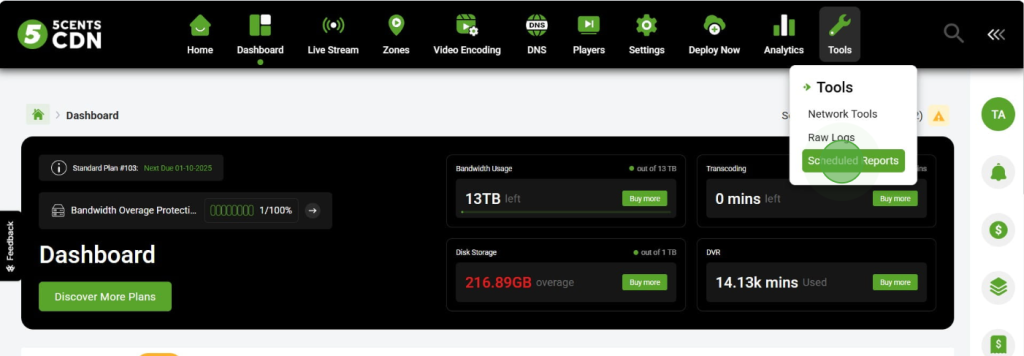
The Scheduled Report feature is available under the Tools section in the CDN dashboard.
Configuration
Click on Schedule new report for creating a new scheduled report
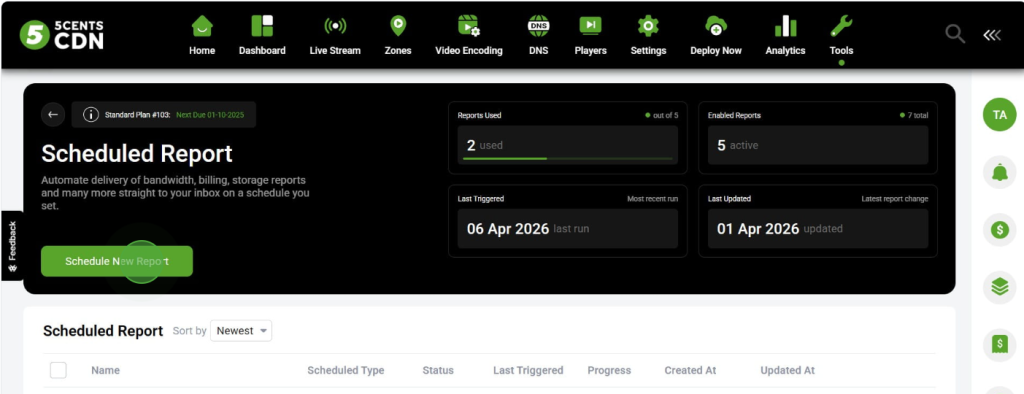
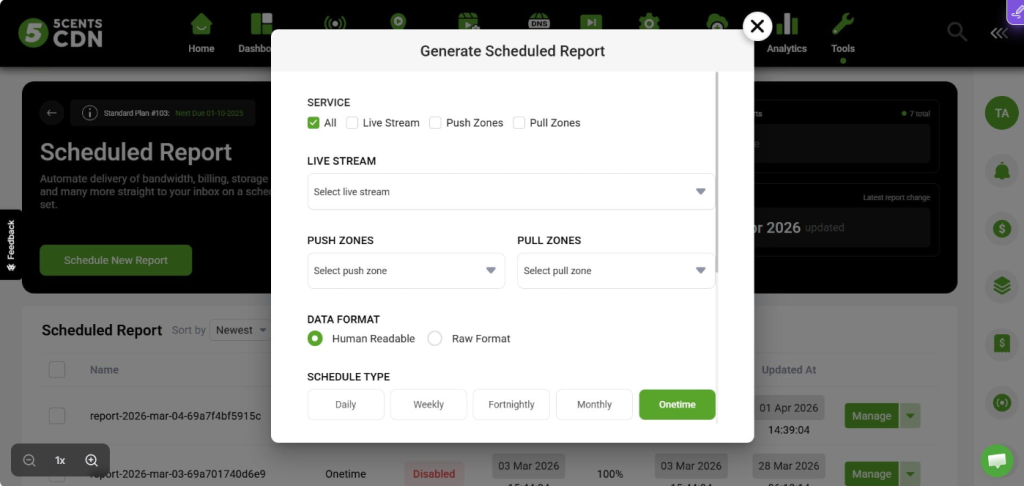
Now you can create a scheduled report. Select the settings according to your use case.
1. Service Selection
Select the service for which the report should be generated. All includes all resources under the account, Live Stream generates reports only for live streams, Push Zones generates reports for push zones in the account, and Pull Zones generates reports for pull zones.
2. Filters (Live Stream / Push Zones / Pull Zones)
- Select a specific Live Stream, Push Zone, or Pull Zone if you want the report for a particular resource.
- If no selection is made, the report will include data for all resources under the chosen service.
3. Data Format
Select the format of the report. Two options are available: Human Readable for a simple and easy-to-understand format, and Raw Format for detailed data used for analysis or export.
4. Schedule Type
This setting determines how often the report will be generated:
- Daily: Every day
- Weekly: Once per week
- Fortnightly: Every 15 days
- Monthly: Once per month
- Onetime: Generated only once
If you choose one-time report generation, you need to specify the time period for which you want to generate the report.
There will be a system-generated report name. If you want, you can enable the custom name option and provide your own name.
Notify sub-account user: Enable this and select the sub-accounts to notify sub-account users when the report is ready
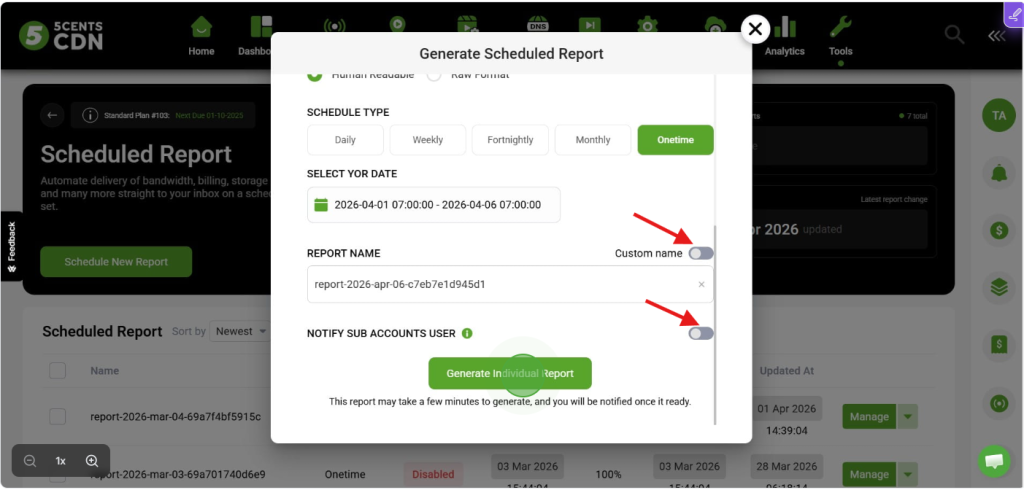
Once the configuration is complete, click on Generate Individual Report to generate the usage report.
Report Generation
- After creating a scheduled report, it may take some time to generate, depending on the interval selected.
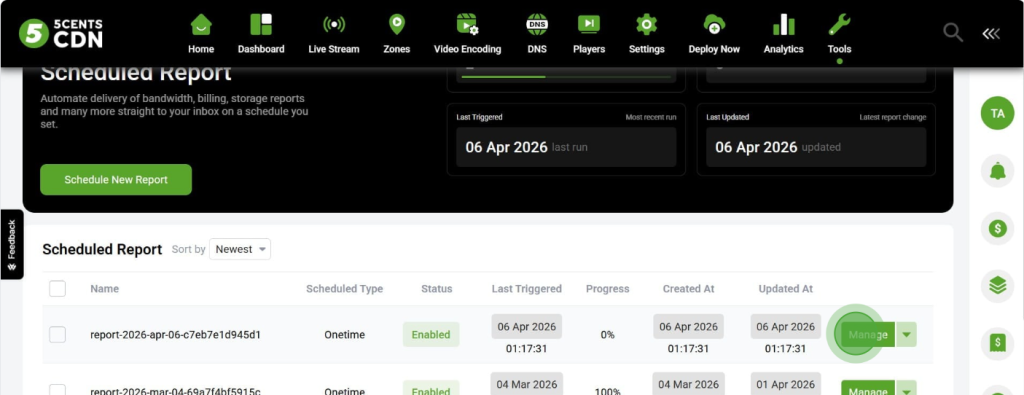
- To manage or view reports:
- Click the Manage button next to the scheduled report.
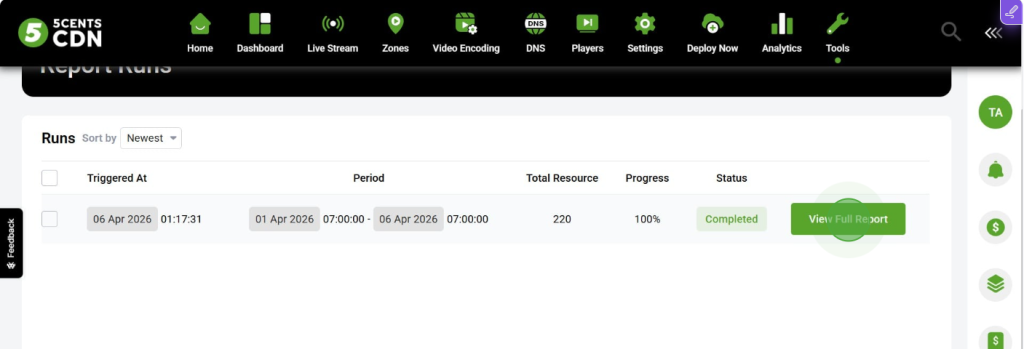
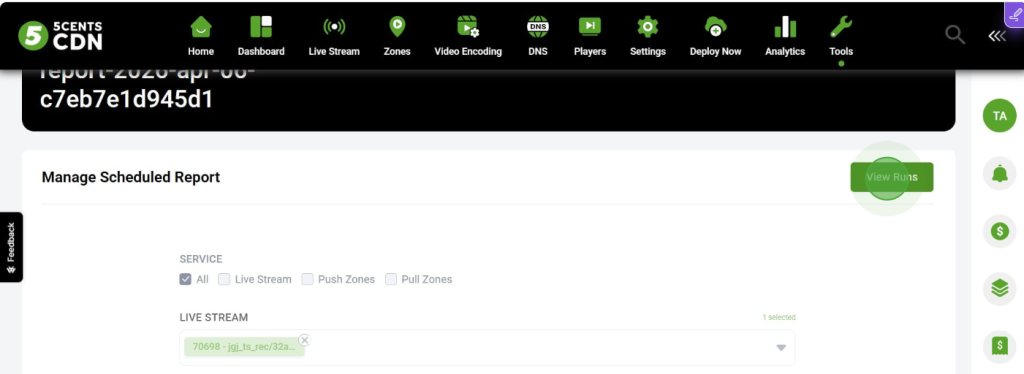
- Click View Runs to see completed runs based on the scheduled intervals.
- For one-time reports, only one run will appear.
- Click View Full Report to see the complete report with all configured details.