This article explains how to configure live stream and post-playback engagement settings, including the offline image displayed when a stream is not broadcasting, the offline countdown timer, and related videos.
These settings are available under Offline Image Setup and Related Video Setup.
Offline Image Setup
The Offline Image Setup section allows you to display a custom image when a live stream is not currently broadcasting.
Instead of displaying a blank or black player, viewers can see an image such as a “We’ll be live soon” message.
Note: The Offline Image setting applies to live streams only.
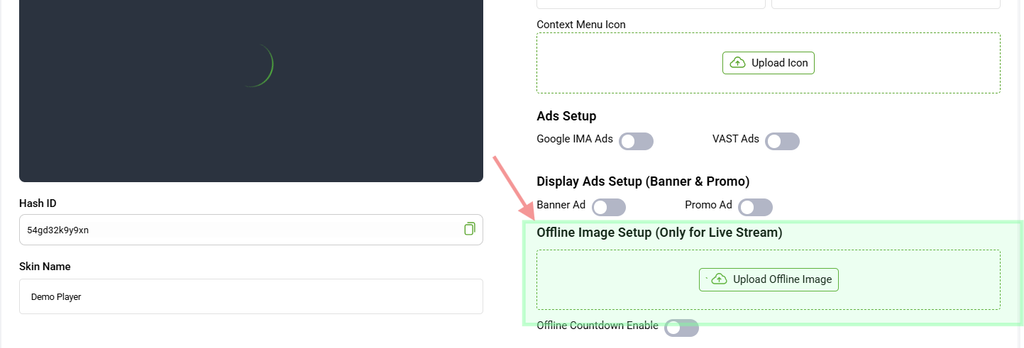
Uploading an Offline Image
Click the OFFLINE IMAGE button to upload the image you want viewers to see while the live stream is offline.
You can use an image containing information such as the upcoming event name, schedule, or a “We’ll be live soon” message.
Enable Offline Count Down
Enable Offline Count Down to display a countdown timer over the offline image.
This can help inform viewers when the live stream is expected to start.
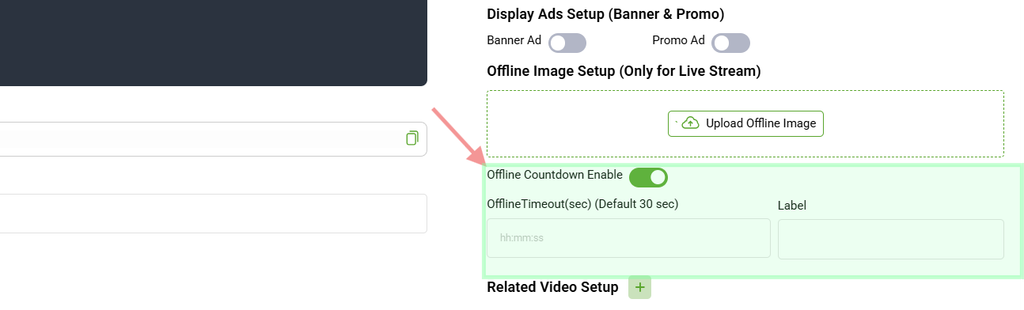
OfflineTimeout
Set the duration of the countdown using the hh:mm:ss format.
For example:
00:00:30
The default countdown duration is 30 seconds.
Label
Enter optional text to display along with the countdown.
For example:
Starting in
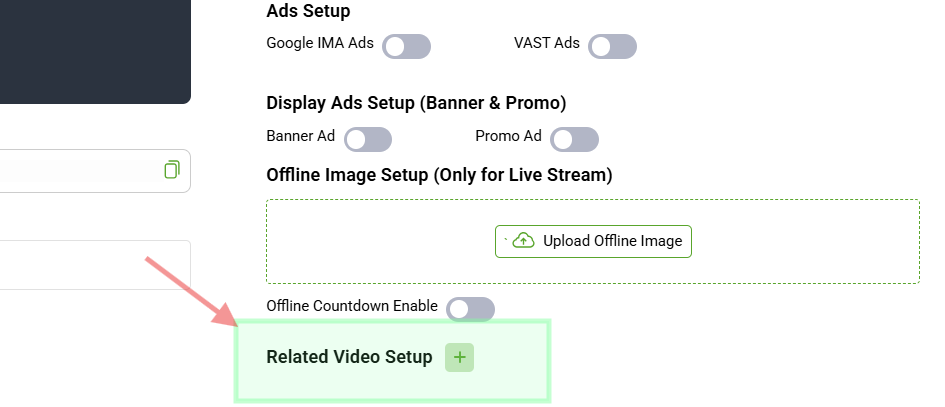
Related Video Setup
The Related Video Setup section allows you to display a list of related videos to keep viewers engaged.
Related videos can typically be displayed after the current video finishes playing.
Click + ADD RELATED VIDEOS to add videos to the list.
Saving Your Settings
After completing your player configuration, scroll to the bottom of the editor and click SAVE to apply your changes.
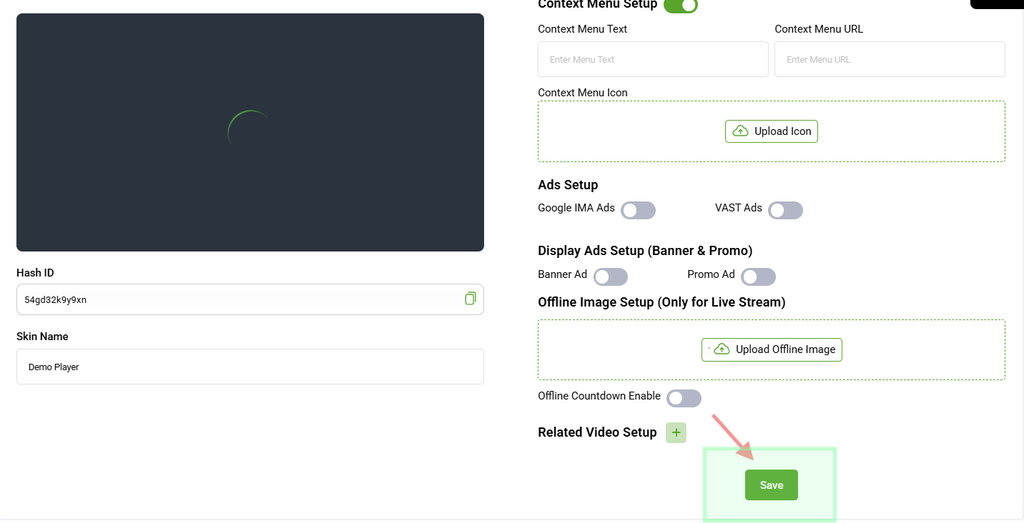
Important: Make sure to save your changes after completing the configuration. Otherwise, your updated settings may not be applied.