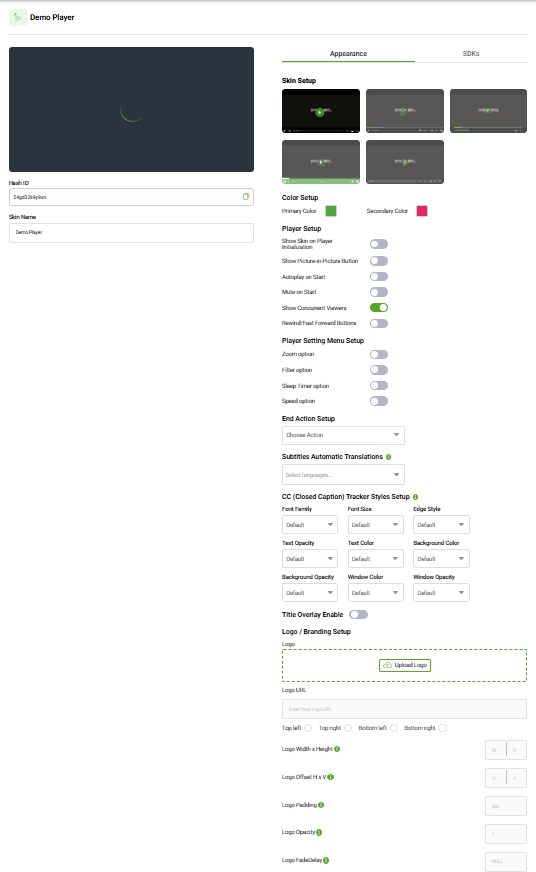
The 5centsCDN Video Player is fully customizable, allowing you to control how your player looks, behaves, and supports monetization without writing any code.
Each configuration is saved as a reusable skin, which you can apply to your videos or live streams.
This guide provides an overview of the available player customization options. Each section includes a link to a detailed article with step-by-step information.
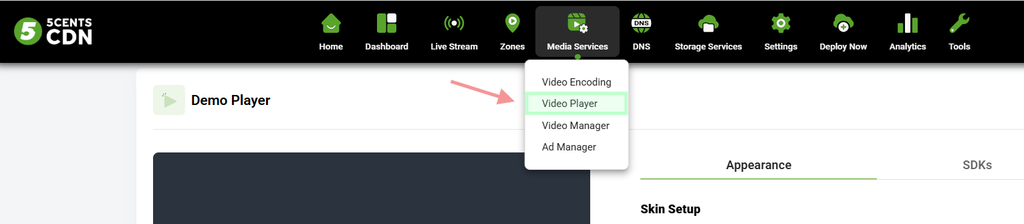
Where to Find the Player Settings
From your dashboard, go to:
Media Services → Video Player
Click on Players
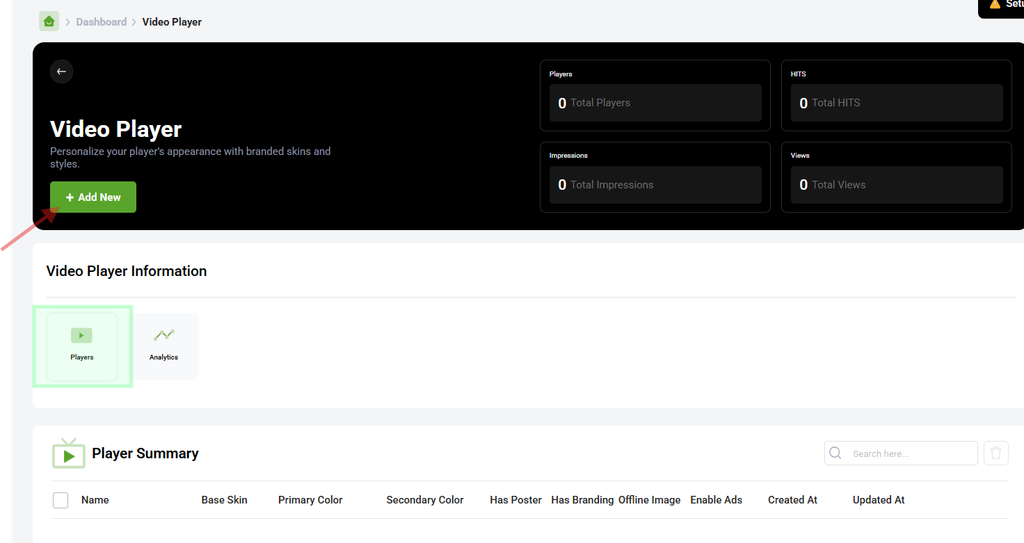
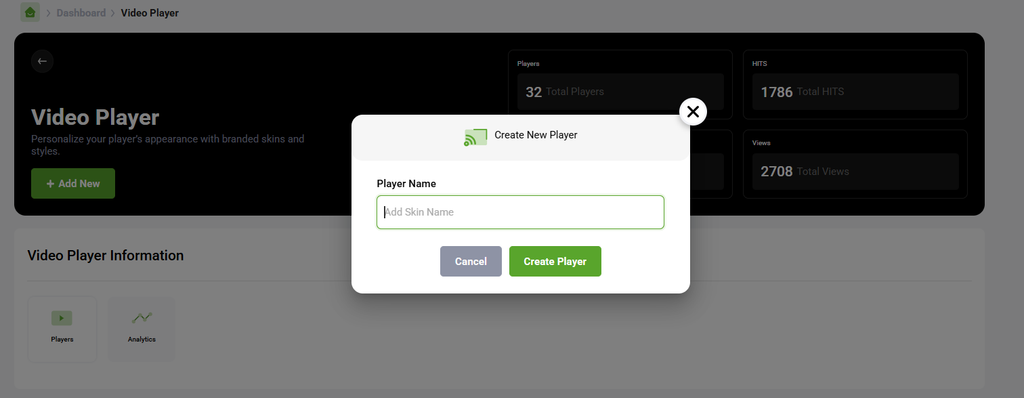
From there, you can create a new skin by clicking the Add New button or edit an existing one.
As you make changes, the live preview on the right side of the editor updates in real time. This allows you to preview how your player will look before saving your changes.
What You Can Customize
The player skin editor provides several configuration areas.
Playback and Controls
Configure playback behavior and player controls, including:
- Autoplay
- Muted playback
- Picture-in-Picture
- Rewind and Forward buttons
- Player settings menu
- End-of-playback actions
Related Article:
How to Configure Video Player Playback and Controls
Appearance and Branding
Customize the visual appearance of your player, including:
- Control-bar skin
- Primary and secondary colors
- Logo
- Logo position and display settings
- Poster image
Related Article:
How to Customize Video Player Appearance: Skin, Colors and Logo
Subtitles and Closed Captions
Configure subtitle and closed caption options, including:
- Automatic subtitle translations
- Caption font and size
- Text and background colors
- Text and background opacity
- Caption edge styles
Related Article:
How to Add Subtitles and Style Closed Captions on Your Video Player
Title Overlay and Context Menu
Configure additional branding and information features, including:
- Title overlay
- Title and description
- Title URL
- Custom title icon
- Custom right-click context menu
- Context menu URL, text, and icon
Related Article:
How to Set Up a Title Overlay and Context Menu on Your Video Player
Ads and Monetization
Configure video and display advertising options, including:
- Google IMA Ads
- VAST Ads
- Banner Ads
- Promo Ads
Related Article:
How to Monetize Your Video Player with Video and Display Ads
Live Stream Settings
Configure options specifically for live streams, including:
- Offline image
- Offline countdown
- Related videos
Related Article:
How to Configure Live Stream Settings: Offline Image and Related Videos
Naming Your Skin
At the beginning of the player creation, you will find the Skin Name field.
Give each skin a clear and descriptive name so that you can easily identify it when applying the skin to your videos or live streams.
For example:
homepage-live-playervod-monetizedlive-event-player
Saving Your Changes
After completing your configuration, scroll to the bottom of the editor and click SAVE.
Your skin will then be saved and available to apply to your videos or live streams.
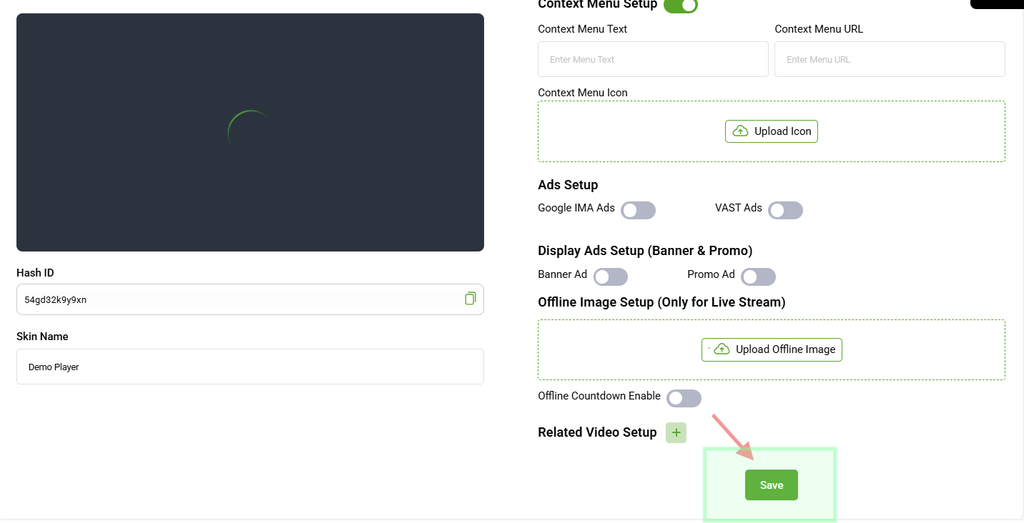
Important: Make sure to click SAVE after making your changes. Unsaved changes will not be applied to the skin.