The video player supports two types of monetization:
- Video Ads — Ads that play within the video stream, such as pre-roll, mid-roll, and post-roll ads.
- Display Ads — Image banners and promotional content displayed as overlays on top of the video player.
These settings are available under Video Ads Setup and Display Ads Setup (Banner & Promo).
Video Ads Setup
The Video Ads Setup section allows you to configure video advertisements using Google IMA Ads or VAST Ads.
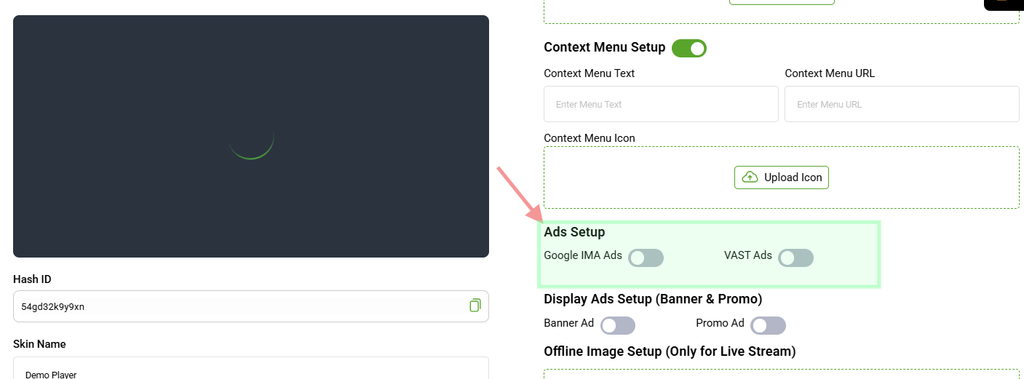
Google IMA Ads
Enable Google IMA Ads to serve advertisements using Google’s Interactive Media Ads (IMA) SDK.
This supports different types of video ad placements, including pre-roll, mid-roll, and post-roll ads from supported Google advertising services.
VAST Ads
Enable VAST Ads to serve video advertisements using a VAST (Video Ad Serving Template) tag from a compatible advertising network.
When VAST Ads is enabled, additional configuration fields will be displayed.
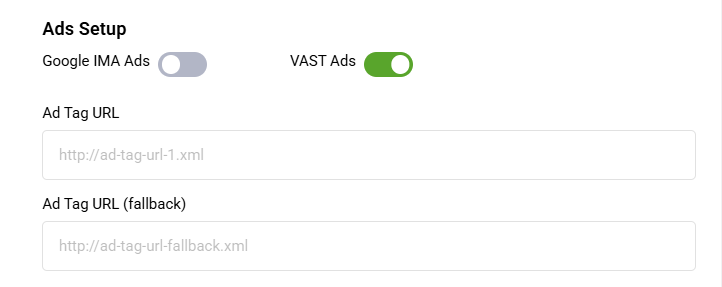
Ad Tag URL
Enter the primary VAST ad tag URL provided by your advertising network.
The URL should point to the XML endpoint containing the VAST ad response.
Ad Tag URL (Fallback)
Enter an optional backup VAST ad tag URL.
If the primary ad tag does not return an advertisement, the player can use the fallback tag instead.
Display Ads Setup (Banner & Promo)
The Display Ads Setup section allows you to display banner advertisements and promotional content as overlays on top of the video player.
Banner Ad
Enable Banner Ad to display an image banner over the video player.
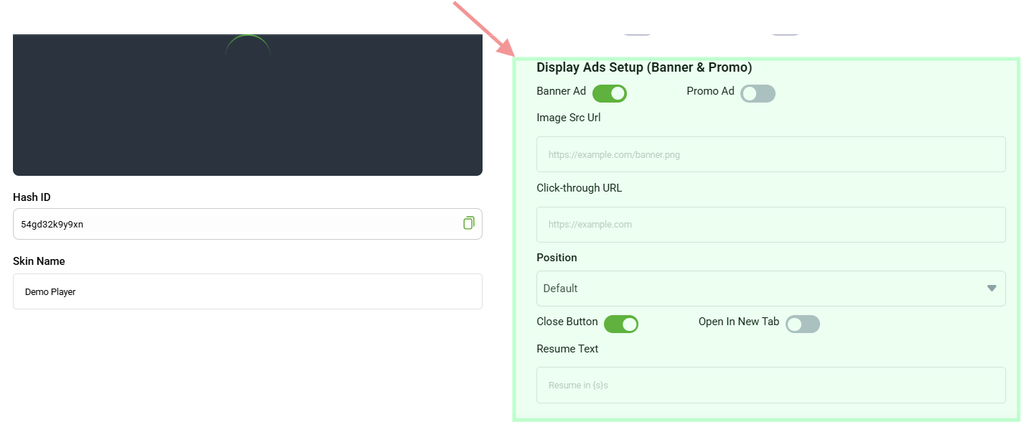
Once enabled, additional banner configuration options will be available.
Image Src URL
Enter the direct URL of the banner image that you want to display.
Click-through URL
Enter the URL where viewers should be directed when they click the banner.
Position
Select where the banner should appear on the video player.
For example, you can select Center or another available position.
Open In New Tab
Enable this option if you want the click-through URL to open in a new browser tab when a viewer clicks the banner.
Close Button
Enable this option to allow viewers to close or dismiss the banner.
Resume Text
Enter optional text that can be displayed to prompt viewers to resume video playback after interacting with the advertisement.
Promo Ad
The Promo Ad feature allows you to promote a service, website, or other link using a small overlay on the video player.
Enable the Promo Ad toggle and click + ADD PROMO to create a promotional item.
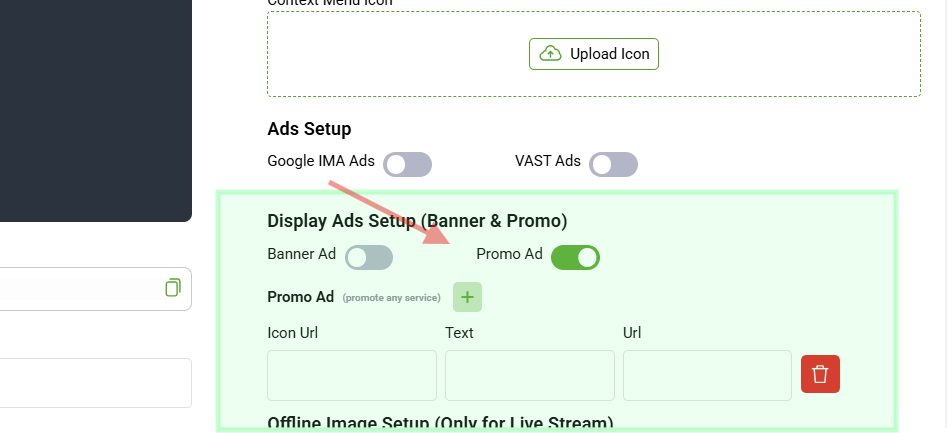
Each promo item includes the following fields:
Icon URL
Enter the direct URL of the icon image that you want to display with the promotional content.
Text
Enter the promotional text or description that you want viewers to see.
URL
Enter the URL where viewers should be directed when they click the promotional item.
To remove a promo item, click the Trash/Delete icon associated with that row.
You can add multiple promo items as required.