This article explains how to configure two branding and information features on your video player:
- Title Overlay — Displays a title, link, description, and optional icon at the top of the player.
- Context Menu — Allows you to customize the menu displayed when a viewer right-clicks on the player.
These settings are available under Title Overlay Setup and Context Menu Setup.
Title Overlay Setup
The Title Overlay displays a title, link, and description at the top of the video player.
You can use this feature to identify your content, display your channel or video name, or provide a link back to your website.
Enable Title Overlay
Enable this toggle to display the title overlay on the player.
When the toggle is disabled, the title overlay will not be displayed and the related configuration fields will remain hidden.
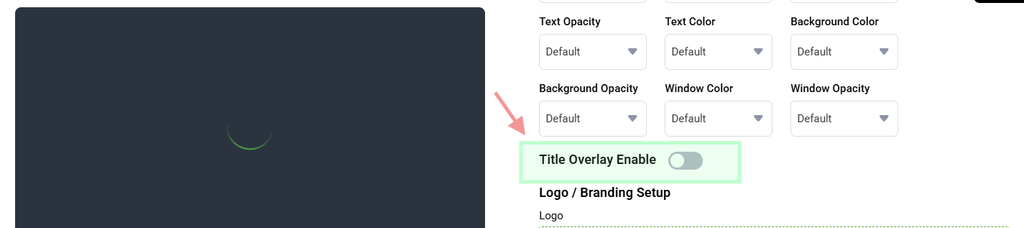
Once the toggle is enabled, additional configuration fields will be displayed.
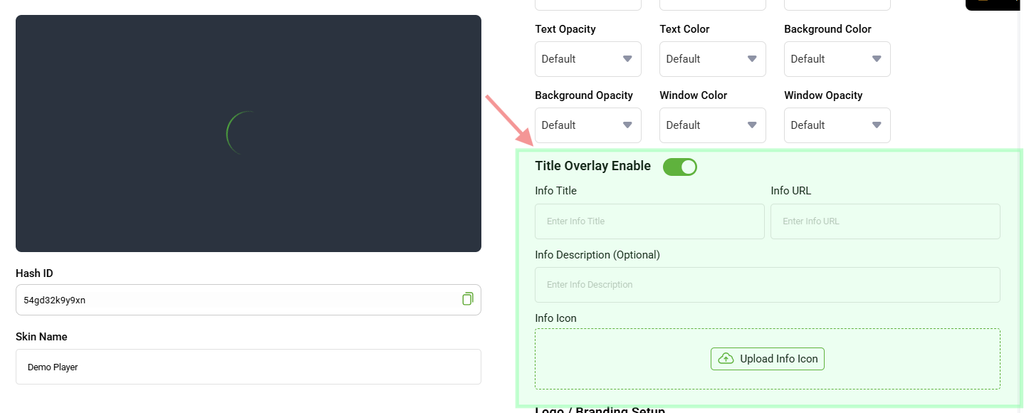
Info Title
Enter the main title that you want to display on the video player.
For example, you can enter your channel name, video title, or other relevant content information.
Info URL
Enter the URL that the title should link to.
When a viewer clicks the title overlay, they will be directed to the configured URL.
Info Description
Enter a short description or supporting text to display below the title.
This field is optional.
Info Icon
Click the Info Icon button to upload a small icon or logo to display alongside the title.
Context Menu Setup
The Context Menu is displayed when a viewer right-clicks on the video player.
You can use this feature to replace the default context menu with a custom menu item containing your own label, link, and icon.
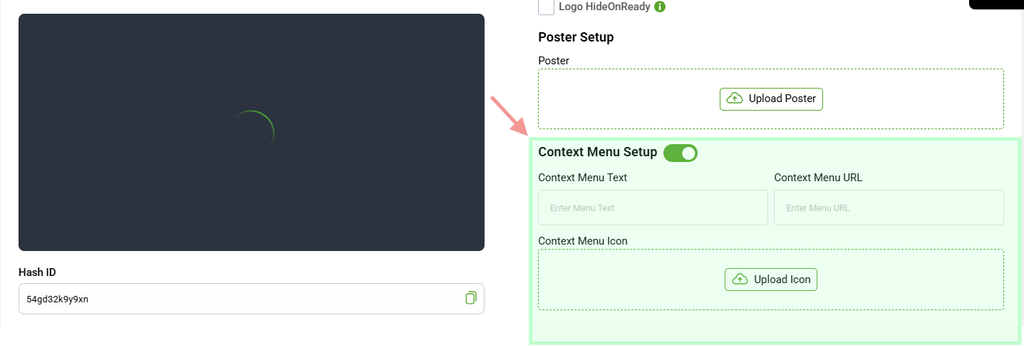
Enable Context Menu
Enable this toggle to display a custom context menu when viewers right-click on the video player.
Context Menu URL
Enter the web address that viewers should be directed to when they click your custom context menu item.
Context Menu Text
Enter the text that you want to display for the custom context menu item.
For example:
Powered by 5centsCDN
You can also use your own brand name or other relevant text.
Context Menu Icon
Click the Context Menu Icon upload button to upload a small icon that will be displayed alongside your custom context menu item.