This article explains how to customize the visual appearance of your video player, including the control-bar style, brand colors, logo, logo placement, and poster image displayed before playback.
These settings are available under Skin Setup, Color Setup, Logo / Branding Setup, and Poster Setup.
Skin Setup
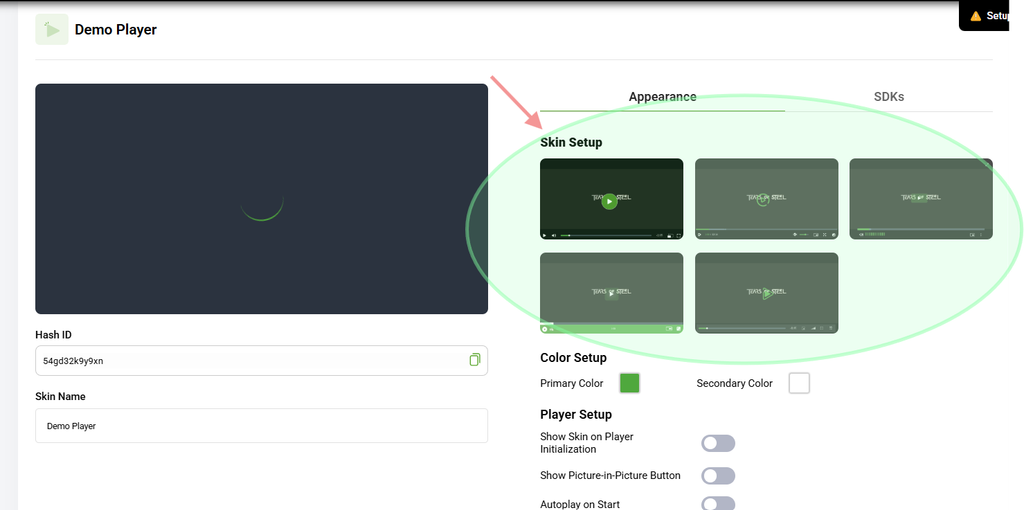
The Skin Setup section controls the design and appearance of the player control bar, including the play button, progress bar, and other control buttons.
Select one of the available skin thumbnails. The selected skin will be applied immediately to the player preview.
Color Setup
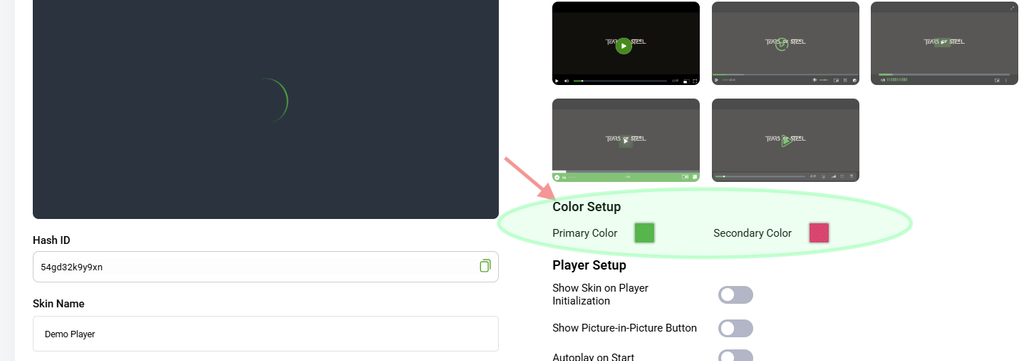
The Color Setup section allows you to customize the player colors to match your brand.
Primary Color
The Primary Color is the main accent color used for elements such as the play button and other key highlights.
Secondary Color
The Secondary Color is used for supporting elements, such as the progress bar and other secondary controls.
Tip: Use your brand’s exact HEX color values to keep the video player consistent with the rest of your website.
Logo / Branding Setup
The Logo / Branding Setup section allows you to add your own logo as a watermark on the video player.
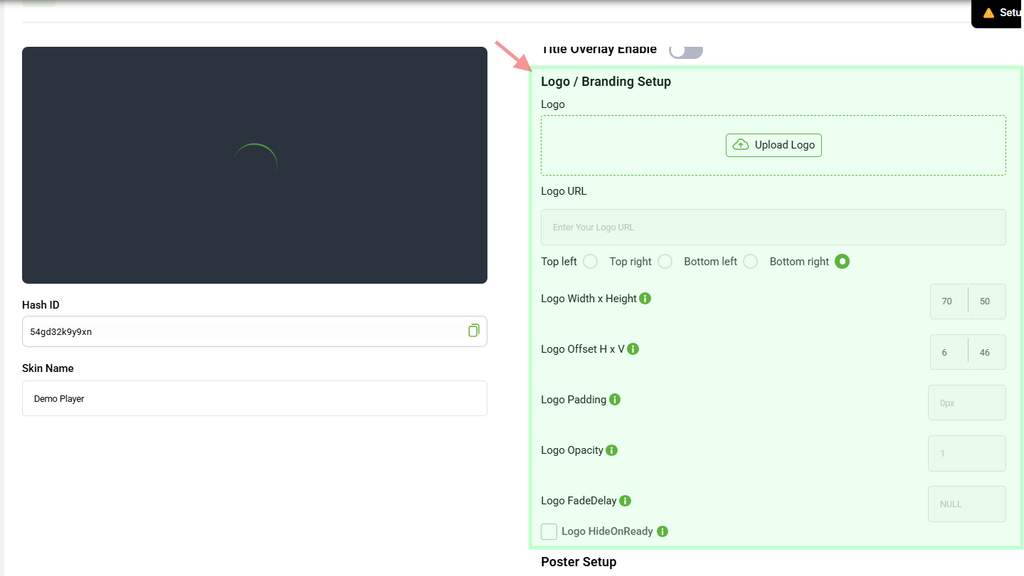
Uploading a Logo
Click the LOGO button to upload your logo image.
Alternatively, you can enter a direct image URL in the Logo URL field.
To remove an uploaded logo, click the Delete/Trash icon.
Logo Position
Select where you want the logo to appear on the player:
- Top Left
- Top Right
- Bottom Left
- Bottom Right
Logo Width × Height
Set the display dimensions of the logo in pixels using the Width × Height fields.
Logo Offset H × V
Use the Horizontal (H) and Vertical (V) offset values to fine-tune the logo’s position from the selected corner.
Logo Padding
Set the amount of space between the logo and the edge of the video player.
Logo Opacity
Adjust the transparency of the logo.
Lower opacity values make the logo appear more transparent and subtle.
Logo Fade Delay
Set how long, in seconds, the logo remains visible before it fades out.
Hide Logo
Enable Hide Logo to hide the logo from the player without deleting the configured logo settings.
[IMAGE: Logo dimension, offset, padding, opacity, and fade-delay fields, along with the Hide Logo checkbox.]
Poster Setup
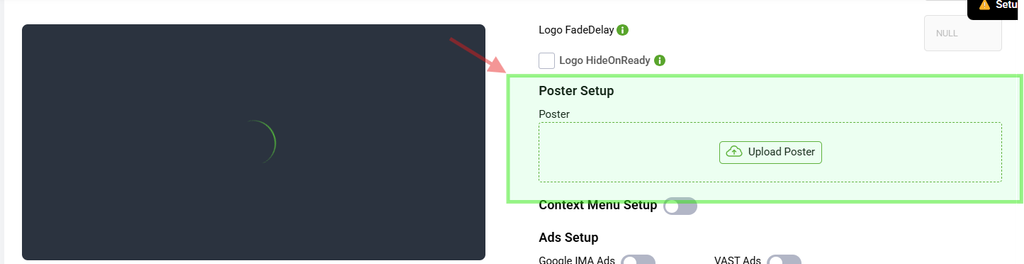
The Poster is the still image displayed before the video starts playing. It acts as the initial thumbnail that viewers see when the player loads.
To add a poster image, click the POSTER button and upload your image.