This article explains how to configure your video player’s playback behavior and controls, including autoplay, mute settings, Picture-in-Picture, playback controls, player settings, and end actions.
These settings are available in the Player Setup, Player Setting Menu Setup, and End Action Setup sections of the skin editor.
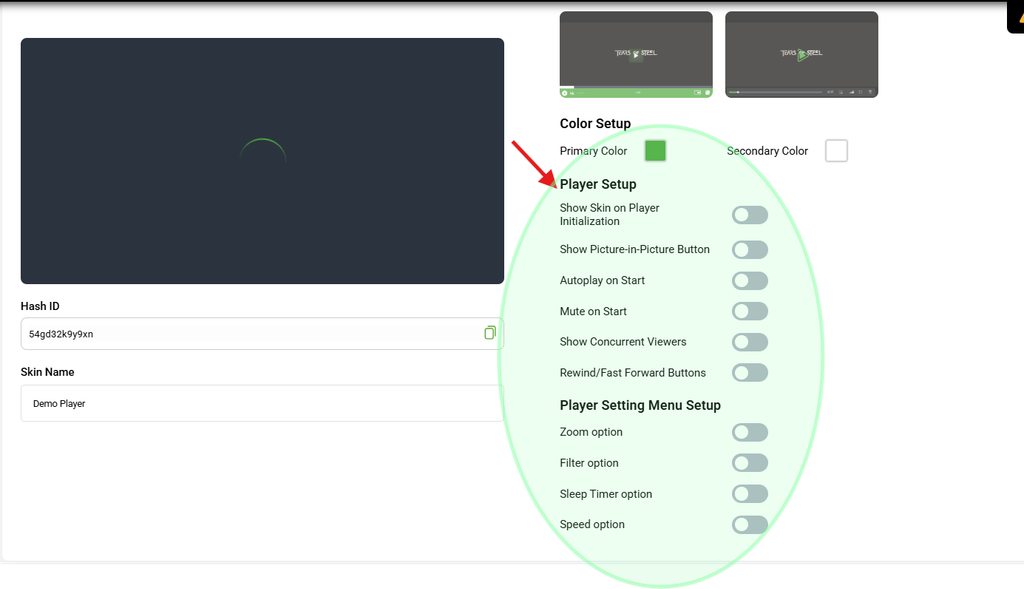
Player Setup
The Player Setup options control the player’s core playback behavior and the controls displayed to viewers.
Show Skin on Player Initialize
When enabled, your custom player skin, including the control bar, logo, and colors, is displayed as soon as the player loads, before playback starts.
Enable this option if you want your custom branding to be visible immediately when the player loads.
Show Picture-in-Picture Button
When enabled, a Picture-in-Picture (PiP) button is added to the player control bar.
This allows viewers to pop the video out into a small floating window and continue watching while browsing other content.
AutoPlay on Start
When enabled, the video starts playing automatically as soon as the player loads.
Note: Most browsers restrict autoplay when audio is enabled. For autoplay to work reliably, the player generally needs to start in a muted state. See Muted on Start below.
Muted on Start
When enabled, the video starts with the audio muted.
This is required by most browsers for autoplay to work reliably. If you enable AutoPlay on Start, we recommend enabling Muted on Start as well.
Show Concurrent Viewers
When enabled, the player displays the current number of viewers in the top-right corner.
This option is useful for live streams where you want viewers to see real-time audience engagement.
Rewind/Forward Buttons
When enabled, Rewind and Forward buttons are added to the player control bar.
These buttons allow viewers to skip backward or forward by 10 seconds during playback.
Player Setting Menu Setup
The Player Setting Menu Setup options control which features are available in the player’s settings (gear) menu.
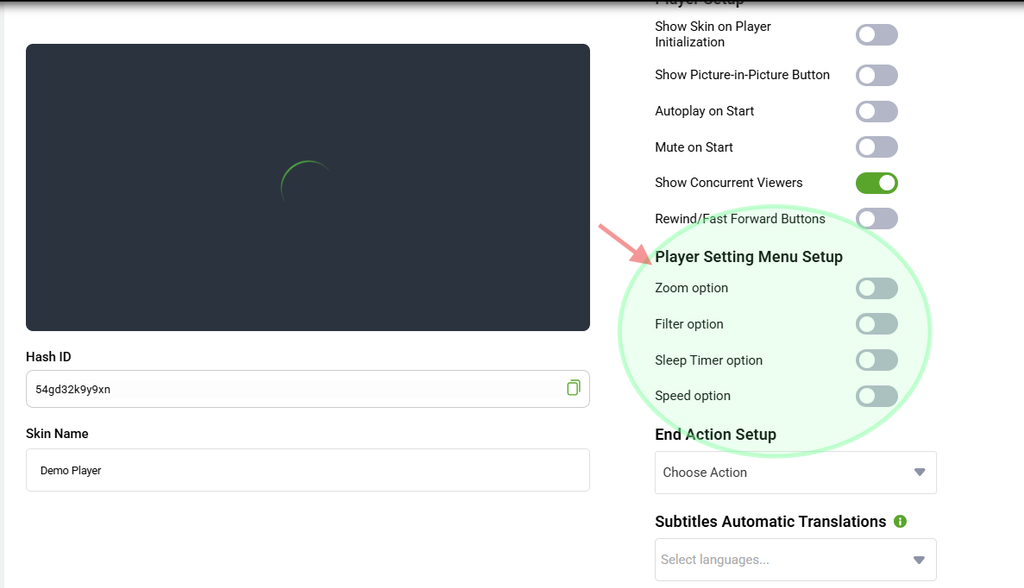
Zoom Option
When enabled, viewers can zoom into the video frame during playback.
Filter Option
When enabled, viewers can access visual filters, such as brightness and contrast adjustments.
Sleep Timer Option
When enabled, viewers can set a timer to automatically stop playback after a selected duration.
This can be useful for viewers who watch videos before going to sleep.
Speed Option
When enabled, viewers can change the playback speed.
For example, viewers can select speeds such as 0.5x, 1.5x, or 2x, depending on the available options.
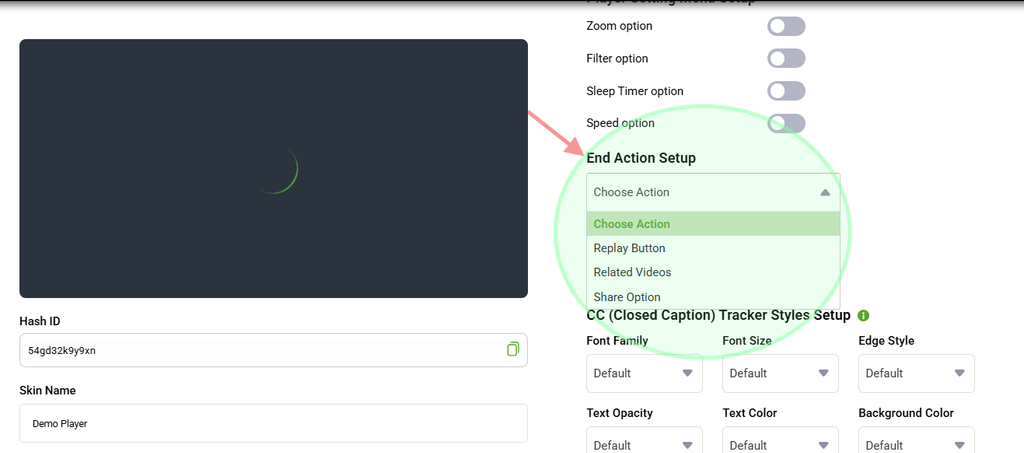
End Action Setup
The End Action Setup determines what happens when a video finishes playing.
Use the Choose Action dropdown to select the desired behavior, such as displaying related content or looping the video.
Select the appropriate action based on how you want the player to behave after playback ends.
Related Articles
- How to Customize Video Player Appearance: Skin, Colors and Logo
- How to Monetize Your Video Player with Video and Display Ads
Note: If you are using autoplay with ads, keep Muted on Start enabled to help ensure autoplay works as expected.