To enhance account security and prevent unauthorized access, 5centsCDN now requires OTP (One-Time Password) verification when logging in to the dashboard from a new IP address. This article explains how to complete OTP login verification and manage your account’s login security settings.
How to Login Using OTP Verification
Go to the 5centsCDN login page https://www.5centscdn.net/dashboard/
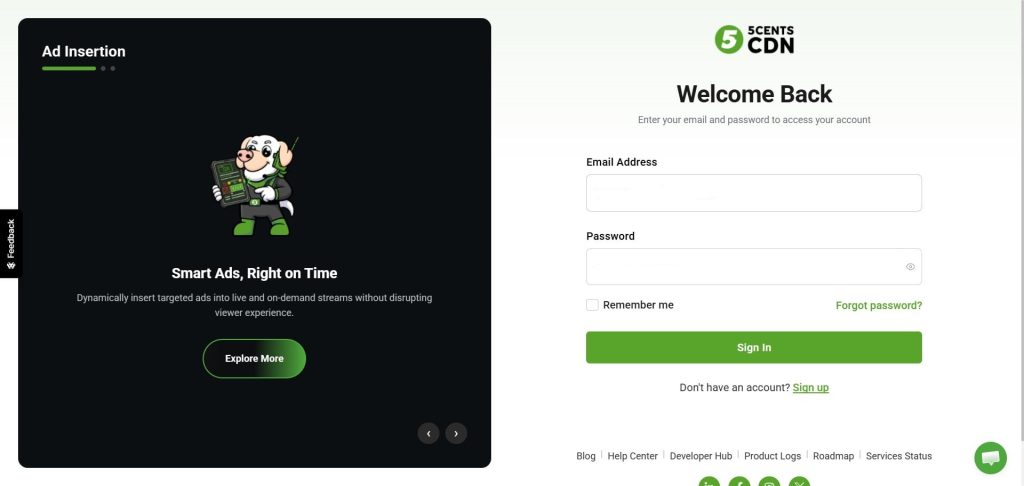
Enter your login credentials.
If you’re logging in from a new IP address, you’ll be redirected to the Verify Your Login page.
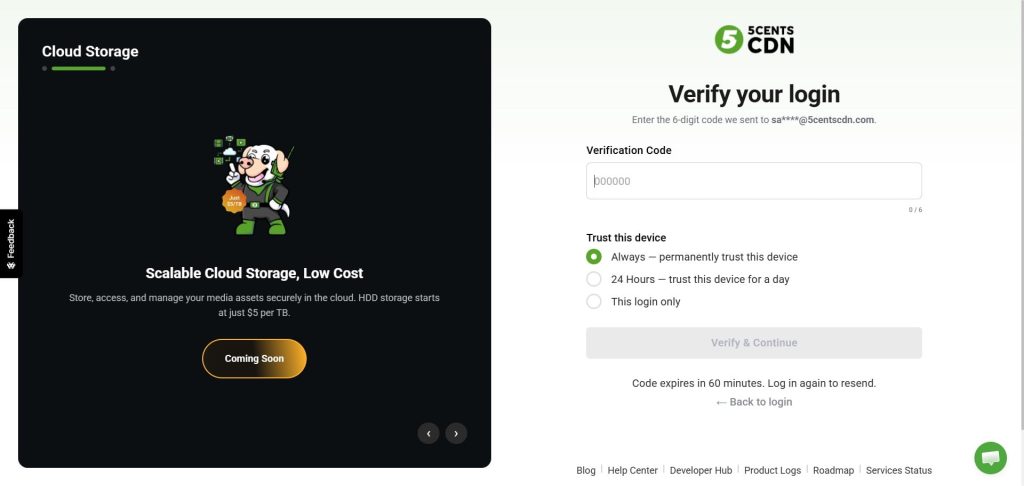
A 6-digit OTP will be sent to your registered email address. Open your inbox and look for an email with the subject “Action Required: Verify Your Login.”
Copy the 6-digit code from the email and enter it on the Verify Your Login page.
Click Verify and Continue to complete your login.
What to Do If You Don’t Receive the OTP
Verify your email address – Confirm that the email address registered on your account is correct and active.
Check your spam/junk folder – The OTP email may have been filtered there instead of your inbox.
Try resending the OTP – Go back to the login page and log in again to trigger a new OTP email.
Contact support – If you still haven’t received the OTP after trying the above steps, reach out to our support team for assistance.
Account security Settings
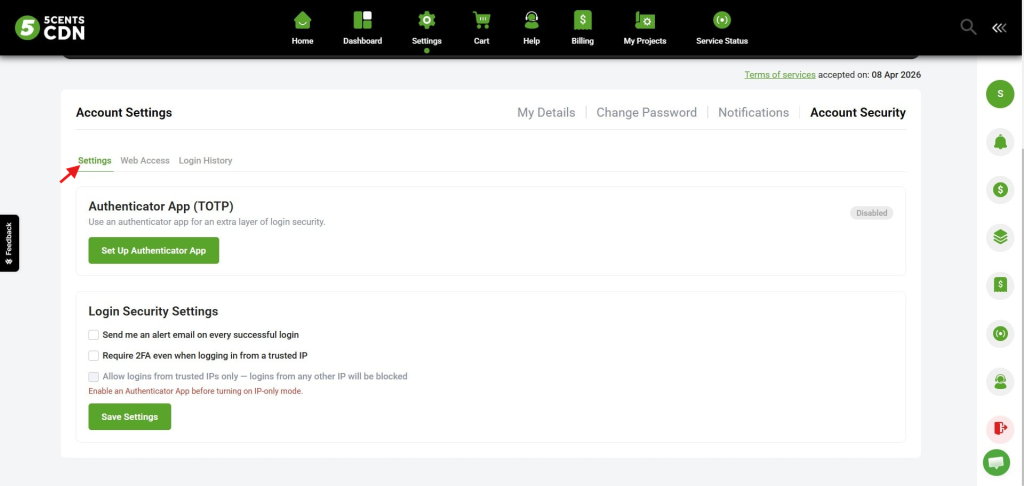
Clients can access the Account Security settings from the dashboard to view login activity, manage allowed/restricted IP addresses, and set up an Authenticator App for an extra layer of login security.
How to Access Account Security Settings
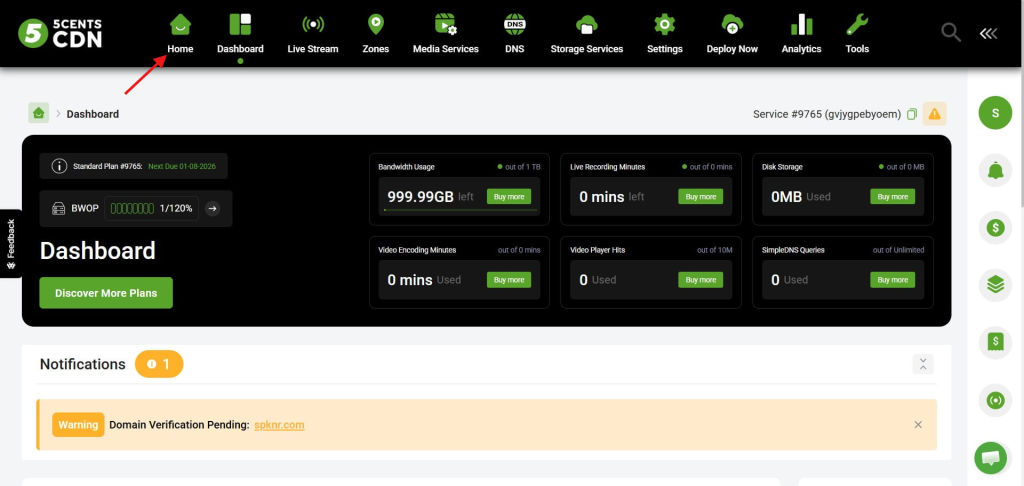
Go to the CDN dashboard home page.
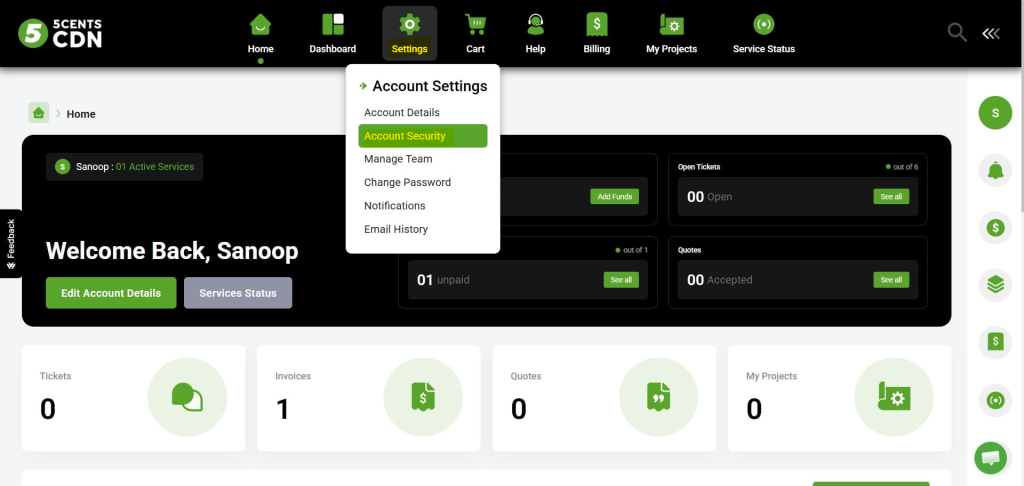
Click on Settings > Account Security.
Settings: From the Account Security settings, you can set up an Authenticator App for added login security, based on your requirements.
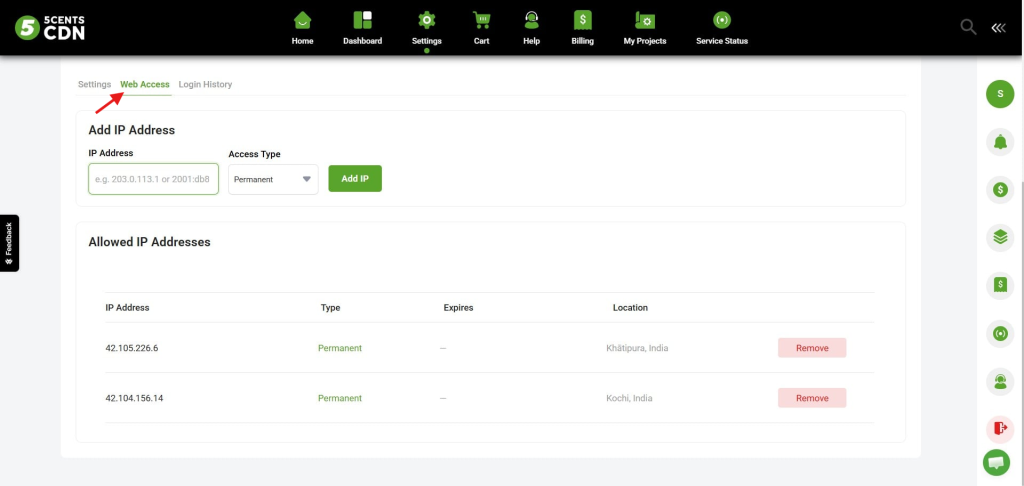
Web Access: This section displays the IP addresses currently allowed for login. If an IP is on the allowed list, OTP verification won’t be triggered for that IP again. From here, you can:
Remove an existing allowed IP address
Whitelist a new IP address
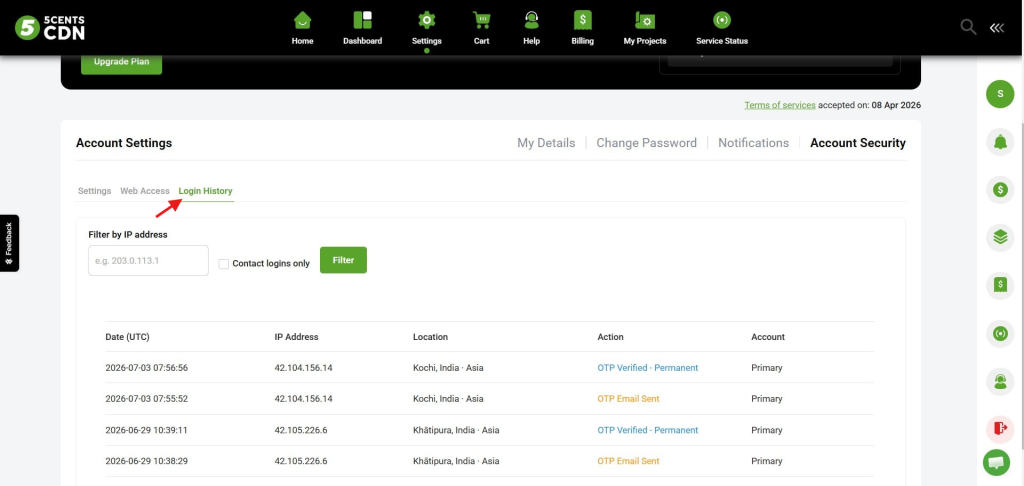
Login History: This section displays a log of all login activity on your account.