
The Stream Monitoring (Health Check) feature allows you to automatically monitor the health of your live streams. When enabled, the system checks the stream status at regular intervals and helps you quickly identify issues such as stream interruptions or source failures.
This feature ensures better stream reliability by continuously monitoring the stream availability.
How to Enable Stream Health Check
Step 1: Navigate to the Live Streams Section
- Log in to your 5centsCDN control panel.
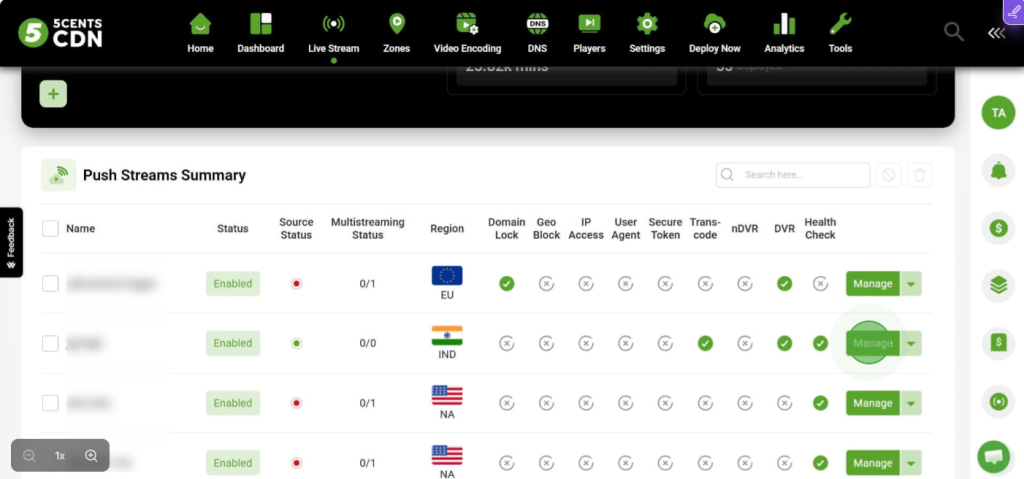
- Click on Live Stream from the top navigation menu.
- Under Live streams, locate the stream you want to monitor.
- Click the Manage button for the selected stream.
This will open the stream configuration page.
Step 2: Open Stream Health Check Settings
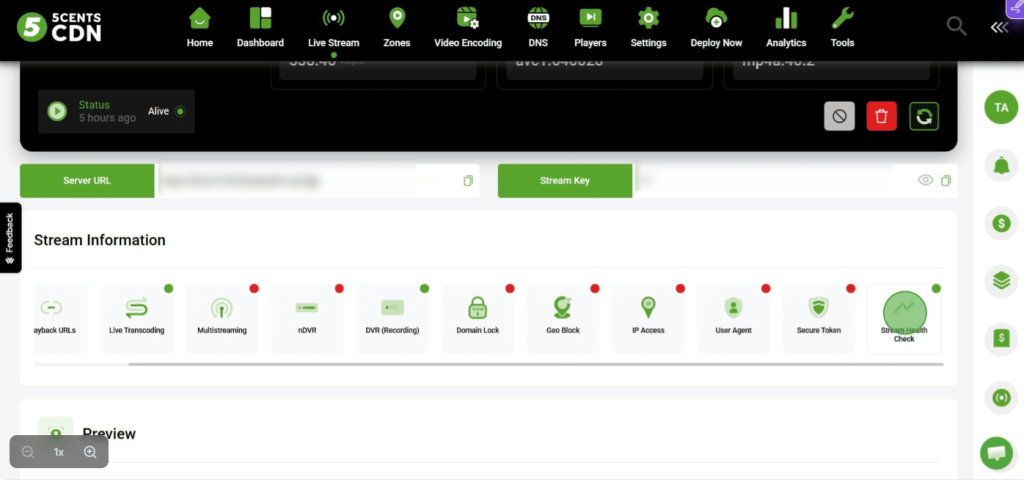
- After opening the stream configuration page, scroll to the Stream Information section.
- Locate the Stream Health Check option.
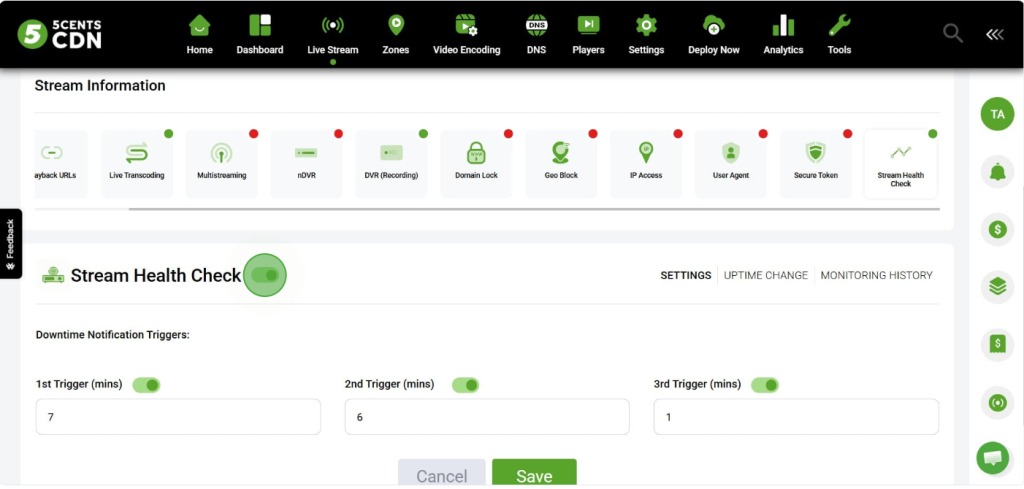
- Click on Stream Health Check to open the monitoring configuration.
What Stream Health Check Does
When enabled, the system will:
- Monitor the stream availability
- Perform checks at regular intervals
- Detect source interruptions
- Help you quickly identify streaming issues
This helps ensure continuous stream delivery to viewers.
Once Stream Health Check is enabled, you will see three tabs that help you configure and monitor your stream health.
1. Settings ⚙️
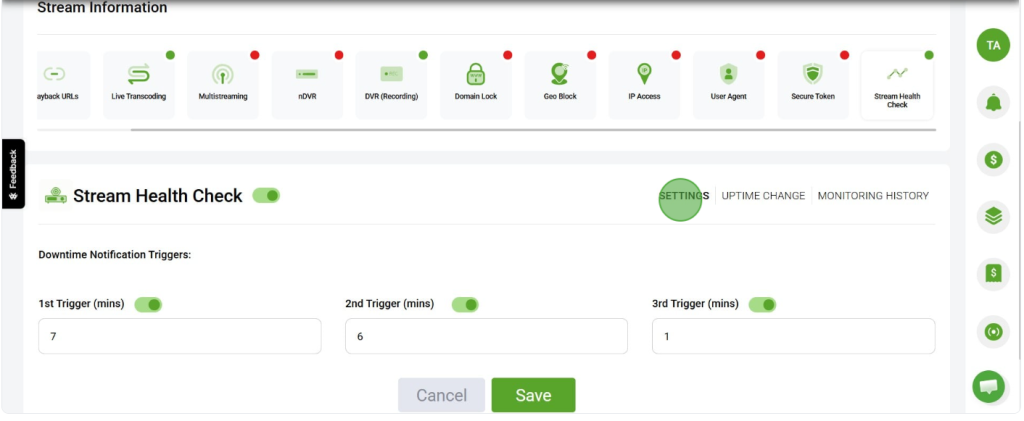
The Settings tab allows you to configure monitoring triggers and email alerts for stream status changes.
With this option, you can receive automatic notifications if the stream goes down.
Trigger Configuration
Clients can configure email triggers that send notifications when the stream status changes.
You can:
- Enable email alerts for stream status goes down
- Define the time duration (in minutes) before an alert is triggered when the stream is down
- Configure up to three triggers
2. Uptime Change 📈
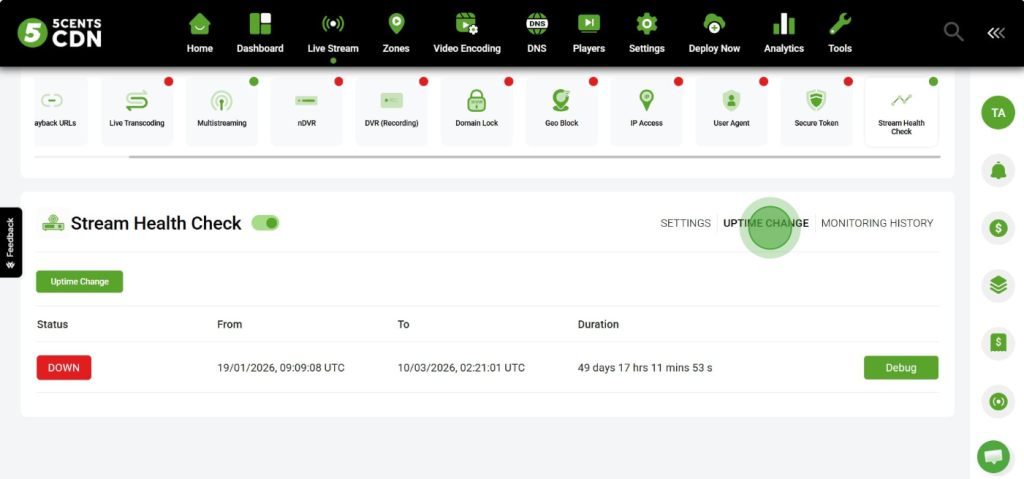
The Uptime Change tab provides detailed information about the stream’s status changes, including when the stream goes online (Up) or offline (Down).
This section helps clients monitor the stability of their live stream by displaying the exact time periods during which the stream was up or down.
Information Available
In this tab, you can view:
- Stream status changes (Up / Down)
- Timestamp of each status change
- Duration of uptime or downtime
- Historical records of stream availability
3. Monitoring History
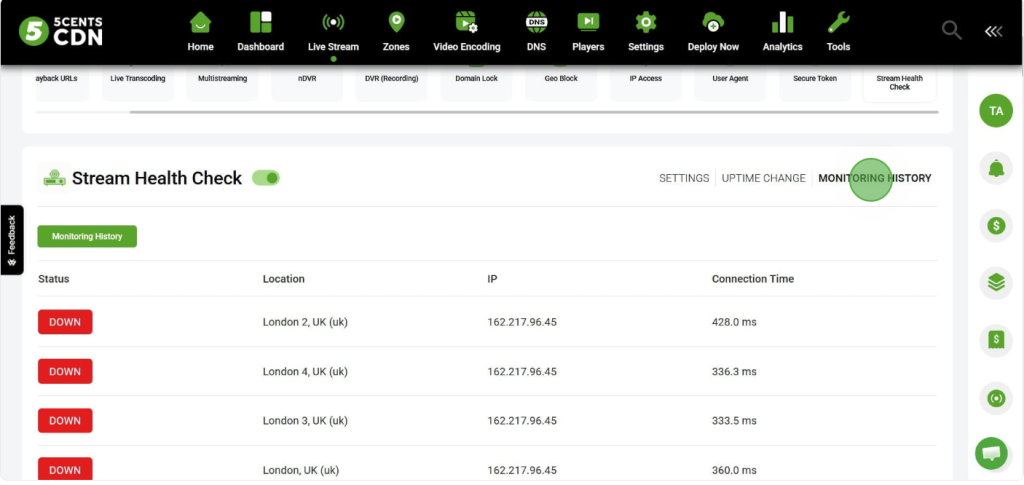
The system checks the stream status at regular intervals and records the real-time status (up or down) at each interval.
- Clients can review this history to see how the stream performed over time.
- Helps in identifying intermittent issues or patterns of instability.
Note: To enable monitoring for a stream, clients must purchase the required number of Stream Health Checks. Each Health Check costs $1.